
How to Preflight Your iPad Before Every Flight (5-Minute Checklist)
5-Minute iPad Preflight Checklist
Before every flight, verify:
- ☐ iPad battery fully charged
- ☐ Backup battery or charging cable aboard
- ☐ Backup EFB (iPhone or second iPad) ready
- ☐ EFB app launches normally
- ☐ Databases and charts are current
- ☐ Charts available offline
- ☐ Route loaded
- ☐ Focus / Do Not Disturb enabled
- ☐ ADS-B receiver or accessories connected
- ☐ Screen clean and brightness adjusted
- ☐ iPad kept out of direct sun
- ☐ Mount secure and clear of controls
The good news is that iPads have proven to be remarkably reliable in the cockpit. Still, like any piece of aviation equipment, they’re most dependable when you take a few minutes to verify everything is ready before engine start. It’s much easier to discover a missing chart or low battery while you’re on the ground than after you’ve leveled off at altitude.
The exact checklist will vary depending on your apps, accessories, and airplane, but here’s a simple routine that applies to almost every pilot. Once you get in the habit, it takes less than five minutes.
1. Start with a full battery
A fully charged iPad should be your goal before every flight. While many airplanes now have USB charging ports or 12-volt power adapters, they aren’t always reliable. Starting with 100% battery gives you the greatest margin if your charging solution doesn’t work as expected.
If you’re planning a long flight without dependable cockpit power, consider enabling Low Power Mode before departure. It reduces background activity while having little impact on the performance of most Electronic Flight Bag (EFB) apps.

2. Check your accessories and backup power
If you fly with a Sentry, Stratus, Garmin receiver, or another external GPS or ADS-B receiver, make sure it’s fully charged as well. These devices often have similar battery endurance to the iPad, so charging everything together the night before is an easy routine.
It’s also smart to have a backup charging plan. A portable battery pack or charging cable weighs very little but can save the day if your primary power source fails.

3. Verify your backup device
No matter how reliable your iPad is, it’s wise to have a Plan B. Whether that’s a second iPad, your iPhone, or even current paper charts, make sure your backup is charged and ready before you leave the ground.
4. Launch your EFB before engine start
Open your primary aviation app while you still have an internet connection. Confirm it starts normally and that your maps, charts, and flight planning tools are working as expected.
If your app updated recently, this quick check becomes even more valuable. While app problems are rare, they’re much easier to solve before you’re strapped into the cockpit.
5. Confirm your databases and charts
One of the easiest mistakes to make is assuming everything has downloaded simply because it was visible at home on Wi-Fi.
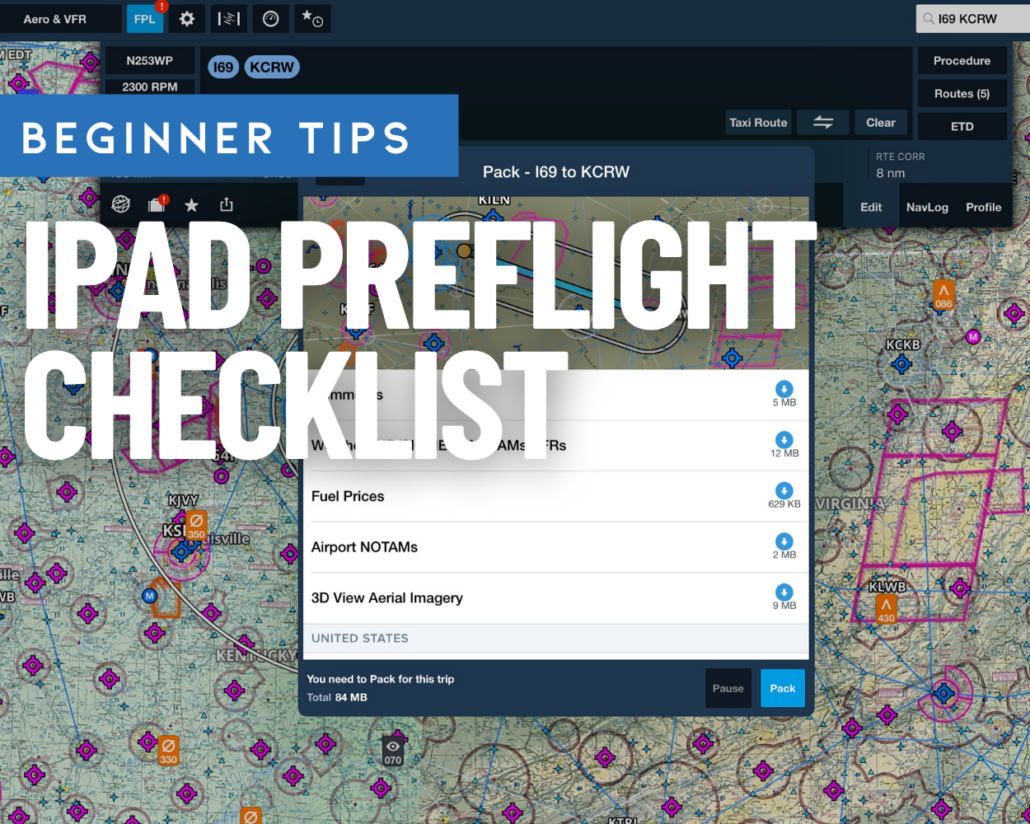
Verify that your chart coverage, procedures, navigation data, terrain, and obstacle databases (as applicable to your app) are downloaded and current for your planned route. Most EFB apps also include tools to verify download status—ForeFlight’s Pack feature is a great example.
For extra confidence, place the iPad in Airplane Mode (re-enabling Bluetooth or Wi-Fi if needed for your accessories) and verify you can access airports, charts, and approach plates without an internet connection.

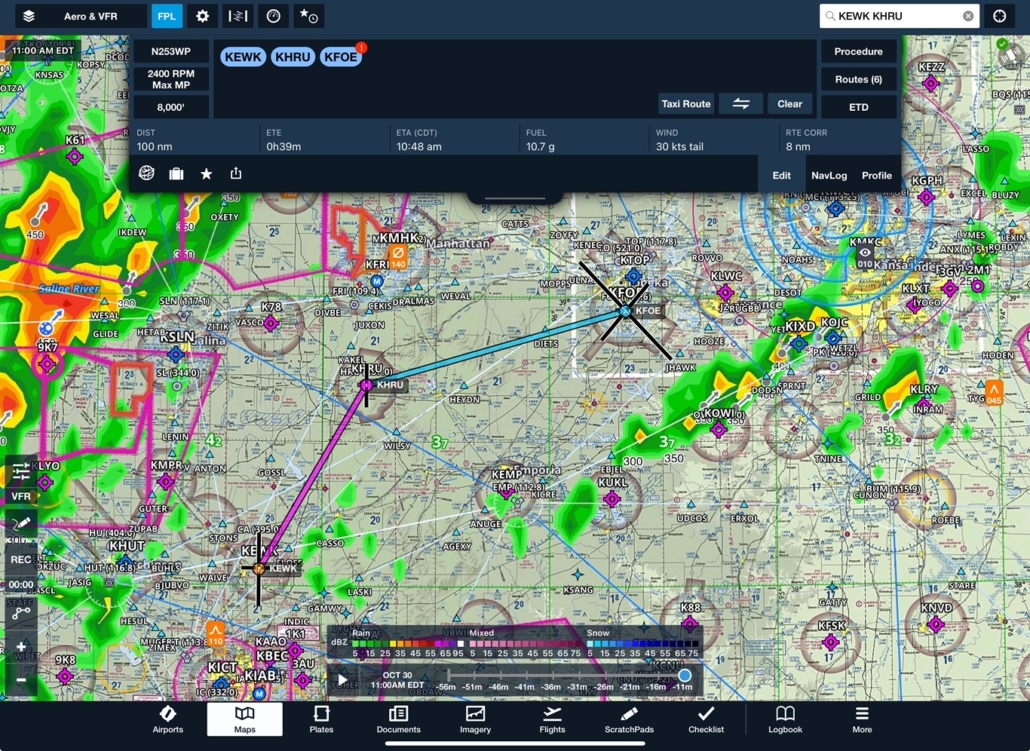
6. Load today’s route
Enter your planned route before engine start, along with any favorite airports, approach plate binders, or flight planning information you’ll want during the flight. Taking care of these small tasks on the ground reduces workload once you’re airborne.
7. Minimize distractions
Your passengers don’t need to know your phone buzzed during an approach.
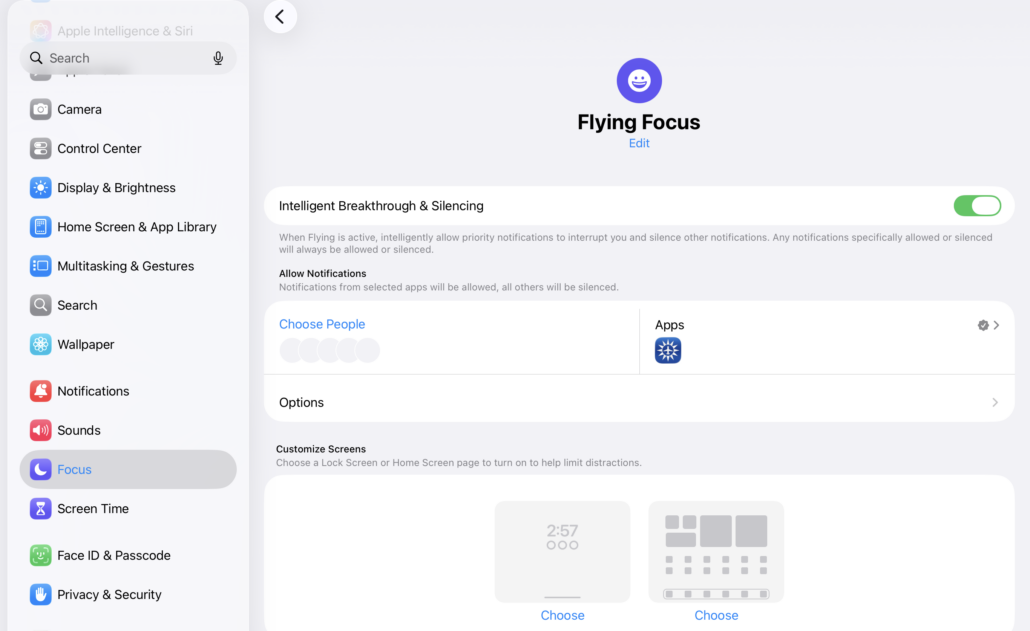
Enable Do Not Disturb or another Focus mode before takeoff so incoming texts, emails, and notifications don’t cover critical information during busy phases of flight.
8. Connect the accessories you’ll actually use
Unlike a few years ago, Bluetooth and Wi-Fi are often essential in today’s cockpit. If you’re using an ADS-B receiver, panel connectivity, or another wireless accessory, confirm it’s connected and working before taxi.
If you don’t need a particular wireless radio during the flight, you can leave it off, but don’t disable Bluetooth or Wi-Fi simply to save battery life. The display remains the biggest power consumer on the iPad.
9. Optimize your display
The screen is still the iPad’s biggest battery drain.
Set the brightness only as high as necessary for current conditions. Even reducing it from 100% to around 70-80% can noticeably extend battery life on a long flight. While you’re at it, wipe away fingerprints and smudges—a clean screen is easier to read and often allows you to use a lower brightness setting.
10. Keep your iPad cool
Heat is one of the biggest enemies of cockpit electronics. Avoid leaving your iPad sitting in direct sunlight on the glare shield before departure, and use cabin air vents whenever possible to help keep it cool. In very hot weather, removing a bulky protective case can also improve cooling.
11. Check your mount
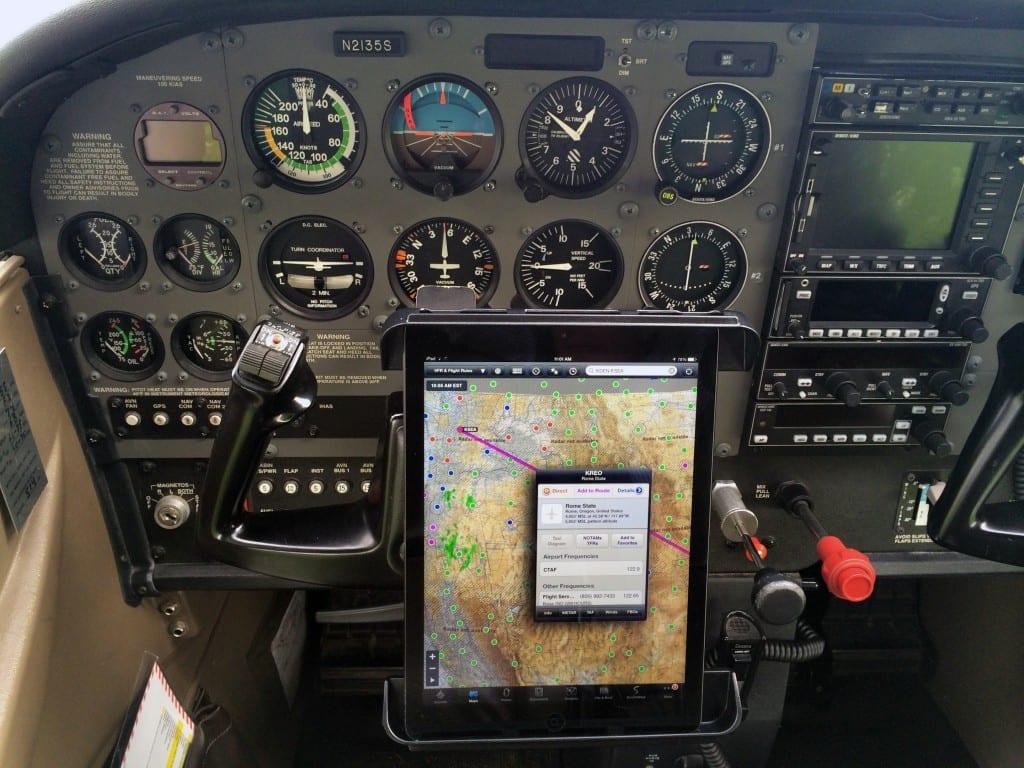
Finally, verify that your iPad mount is secure, properly positioned, and won’t interfere with the flight controls or block important instruments. It’s a quick check that can prevent an annoying—or unsafe—surprise after takeoff.
A five-minute iPad preflight isn’t about assuming something will go wrong. It’s about making sure one of your most important cockpit tools is ready when you need it. Just like a walk-around inspection, this routine quickly becomes second nature—and spending a few minutes on the ground can prevent problems that are much harder to solve once you’re airborne.

- Sporty’s Pilot Training App Adds New Video Lessons and Test Prep for 2027 - October 22, 2026
- 5 Ways to Make Your iPad EFB Less of a Distraction - September 23, 2026
- The Sporty’s Pilot Training App Adds a New Garmin Autopilot Course - September 2, 2026


I’d make one suggestion/correction to #1 for the long life of your iPad battery.
If you are leaving on a long XC flight or multiple local legs where a full battery is required, then yes, charge to 100%. But for 99.9% of your flight and for every day life, you should actually to into the iPad Settings > Battery > Battery Health and turning on the 80% Limit toggle (if your iPad is new enough to have this option). The last 20% of charging is the hardest on battery life.
If you don’t have this option, try to keep an eye on the charging and unplug your iPad as close to 80% whenever possible.
And if flight, if you have the option to plug in, do so and your iPad will stay at 80%. If you can’t plug in, actually even if you can plug in, you should have in your flight bag some sort of Power Bank in case you find you are getting down to that 20-30% and need extra power.