

iPad Storage Full? 8 Ways to Free Up Space Before Your Next Flight (2026 Update)
It happens to almost every pilot: you’re ready to download a new app or update your charts for an upcoming flight, and suddenly your iPad displays the dreaded “iPad Storage Full” message. Over time, as you add apps, take more photos, and store more aviation data, your device can run out of space—usually at the worst possible moment. Fortunately, with a few minutes of attention, you can clear storage and get back in the air.
iPad storage options
iPads now come with more storage options than ever, ranging from 64GB up to 2TB on the newest models. Previous-generation devices started at just 8GB, so planning ahead is crucial. Since iPad storage is not upgradeable, buying a model with more space than you think you need is worth the investment.

Not the message you want to see as you’re downloading new charts.
For context, downloading every VFR/IFR chart, airport data, and high-resolution terrain in ForeFlight can require 25GB or more. Chart updates a few days before the cycle expiration temporarily store two sets of charts, further consuming space. Even with a 64GB iPad, it can get tight. We recommend 256GB or higher for pilots who want flexibility and room for apps, media, and future iOS updates. You can read our full guide to choosing the right iPad here.
Check your current storage
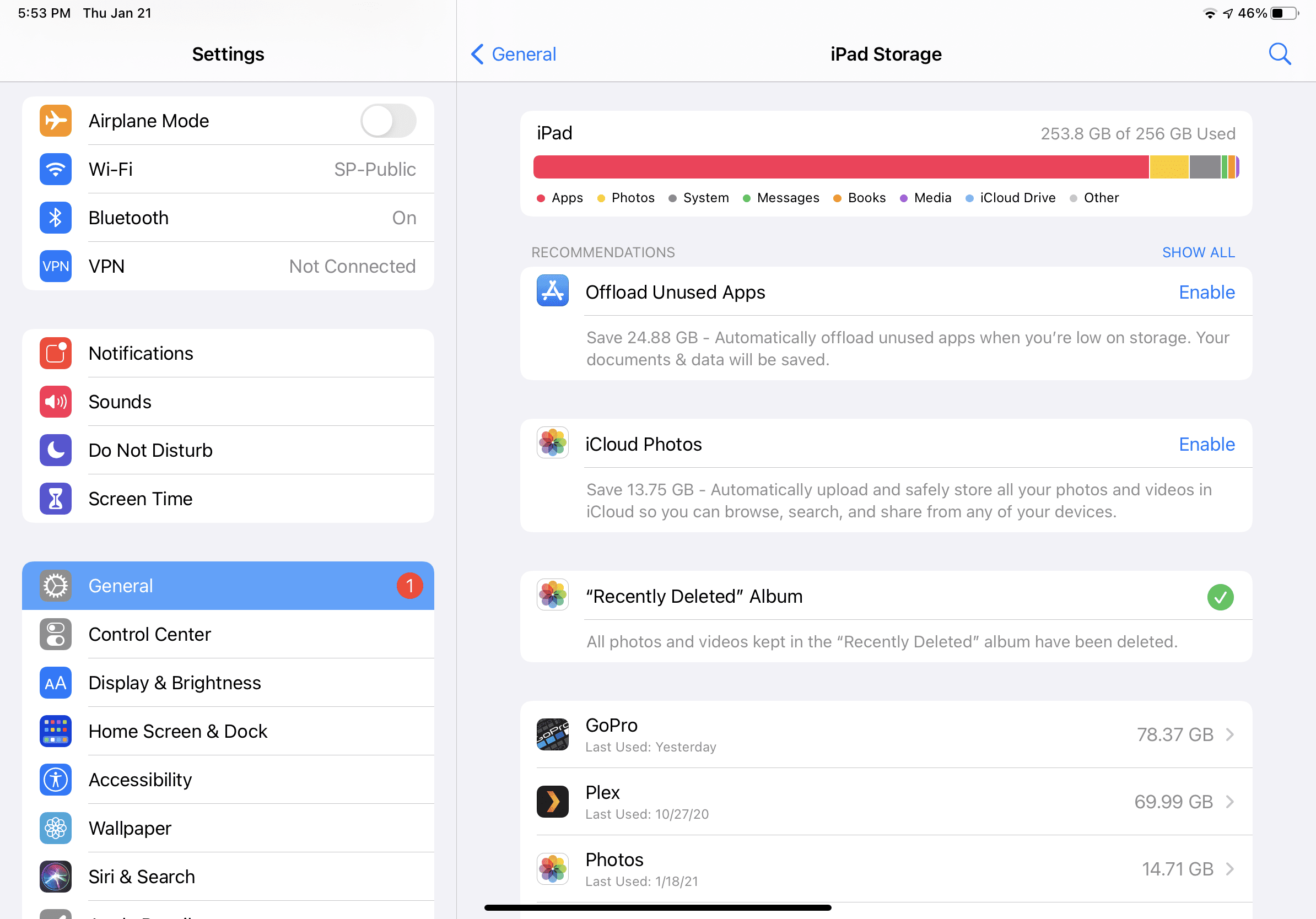
Start by seeing what’s consuming your space:
- Open Settings > General > iPad Storage.
- At the top, you’ll see free space, Apple’s storage recommendations, and a list of apps sorted by size.
- The listed size includes the app itself and any downloaded content (charts, videos, music, etc.).
This overview will help you prioritize what to remove or offload.
How to free up space
Now that you know what’s taking up all your space, it’s time to start prioritizing your needs and removing nonessential apps and content:
1. Delete unused apps—Review apps you no longer use—especially ones with embedded video or media. The Settings app shows your last usage date. Tap the app name and then Delete to free up space instantly.
You can also delete apps from the home screen: tap and hold the icon, then select Remove App. Don’t worry—you can always re-download purchased apps from the App Store for free.

2. Remove media collections inside of apps—Apps can grow due to stored media. Tap an app to see Documents & Data—podcasts, magazines, and videos can consume gigabytes. Delete old content directly in the app to reclaim space.

3. Use the Offload App option—Tap Offload App to delete the app but keep its data and settings. This is perfect for temporarily freeing space for an iOS update or large download, and the app can be quickly restored later.

4. Use cloud services for videos and photos—Use iCloud Photos, Google Photos, or Dropbox to store your media online. Enable Optimize iPad Storage in Settings > Photos to keep lower-resolution copies locally while full-resolution images are stored in the cloud.

5. Optimize Music storage—In Settings > Music, you can enable Optimize Storage. iOS will remove songs you haven’t played recently, freeing space while allowing instant streaming from Apple Music. You can also manually delete downloaded albums.

6. Optimize chart types and regions in your EFB app—Remove charts for regions you don’t fly. For example, if you never fly in Alaska, deleting those charts can free up 5GB+. Disable unnecessary chart types, like helicopter or high-altitude IFR charts, if they’re irrelevant to your flying.

7. Set iMessage storage limits—Messages sync across devices, including your iPad. Over a year, attachments and media can take up multiple gigabytes. Limit storage by going to Settings > Messages > Keep Messages and selecting 30 Days or 1 Year.

8. Clear Safari web browser cache—Web browsers store data to speed up loading. Free space by going to Settings > Safari > Clear History and Website Data. This removes history, cookies, and cached files.

Or let Apple help
If you’re unsure where to start, iPadOS offers personalized recommendations. In Settings > General > iPad Storage, tap the items under Recommendations for quick, customized actions that can free up space in minutes.
An ounce of prevention
Small routine maintenance—like clearing cache, offloading unused apps, and managing media—keeps your iPad running smoothly and ensures you’re always ready for your next flight.

- How to retrieve a Mobile IFR Clearance using Garmin Pilot - September 30, 2026
- iOS Update Green Light program: iOS and iPadOS 27.0.1 - September 28, 2026
- Is the new foldable iPhone Duo a good fit for pilots? - September 14, 2026


Great tips! I always struggle with storage before a trip, and these suggestions are super helpful. I didn’t think about deleting older podcasts and optimizing photos. Thanks for sharing!
Great tips! I never thought about removing old podcasts and videos before a trip. Definitely going to try these methods to free up some space on my iPad. Thanks for sharing!
Great tips! I never thought about offloading apps I rarely use. I’ll definitely be using your suggestions before my upcoming trip. Thanks for sharing!
Great tips! I especially love the idea of offloading unused apps. I often forget about all those games I downloaded but never play. Also, I never thought about clearing Safari’s cache—it really made a difference! Thanks for the helpful suggestions!
Thanks for the helpful tips! I always struggle with storage on my iPad, especially before trips. I’ll definitely try some of these methods to free up space before my next flight.
Great tips! I never thought about deleting old podcasts and downloaded movies before taking a flight. I’m definitely going to try these out to free up some space on my iPad. Thanks for sharing!
Great tips! I never thought about using cloud storage to offload some of my apps and files. Definitely going to try clearing out Safari’s cache too. Thanks for the advice—they’ll come in handy before my next trip!
Great tips! I always struggle with iPad storage before trips. The app and photo management suggestions are particularly helpful. I’ll definitely be using those before my next flight! Thanks for sharing!
Great tips! I often forget about managing my downloads and media files until it’s too late. The suggestion to offload unused apps is a game changer for my travel prep. Thanks for sharing!
Great tips! I never thought about offloading unused apps or clearing Safari cache. I’ll definitely try these before my next trip. Thanks for the helpful suggestions!
Great tips! I struggle with storage issues on my iPad before trips, so this post is super helpful. I especially like the idea of offloading unused apps. Can’t wait to try these methods before my next flight! Thanks for sharing!
Great tips! I never thought about offloading old apps I rarely use. The idea of using cloud storage for photos is also super helpful. Thanks for sharing!
The latest iOS Settings are organized differently. There is an Apps selection at the bottom of the Settings page to access all of the individual apps settings on the iPhone or iPad. The pictures in the article are from a previous version of iOS.