
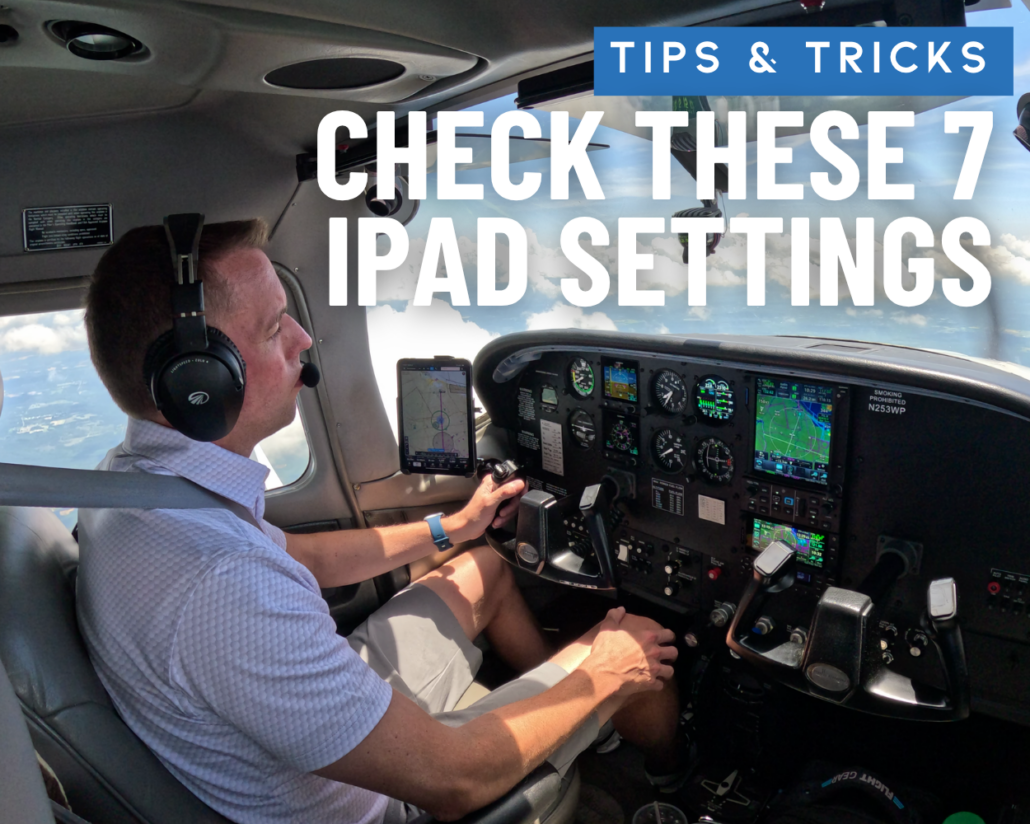
7 iPad Settings to Check Before Your Next Flight
Whether you fly with ForeFlight, Garmin Pilot, or EFB app, chances are you rely on your iPad for everything from weather to approach charts to entertainment. Fortunately, today’s aviation apps are incredibly stable. More often than not, if you encounter a problem, it probably isn’t the app, it’s an iPad setting that was never configured properly or accidentally changed after an iOS update.
Before your next flight, take a minute to check these seven settings. They can help prevent low batteries, locked screens, unnecessary distractions, and other frustrations when you’re busy flying the airplane.
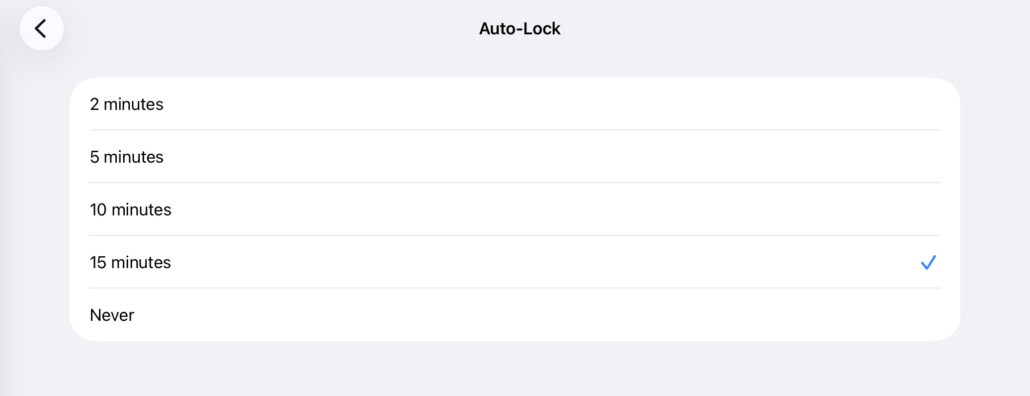
1) Prevent Auto-Lock from Putting Your iPad to Sleep
Location: Settings > Display & Brightness > Auto-Lock
Imagine you’re on final, glance down to verify an altitude or frequency, and the screen is black because your iPad decided it was time for a nap.
Auto-Lock is designed to save battery life by turning off the display after a period of inactivity, but that’s not always what you want in flight.
If your iPad is always connected to ship’s power, consider setting Auto-Lock to Never. If you’re running on battery power, a longer setting like 15 minutes offers a good compromise between convenience and battery life.
2) Turn Off Background App Refresh (At Least for Most Apps)
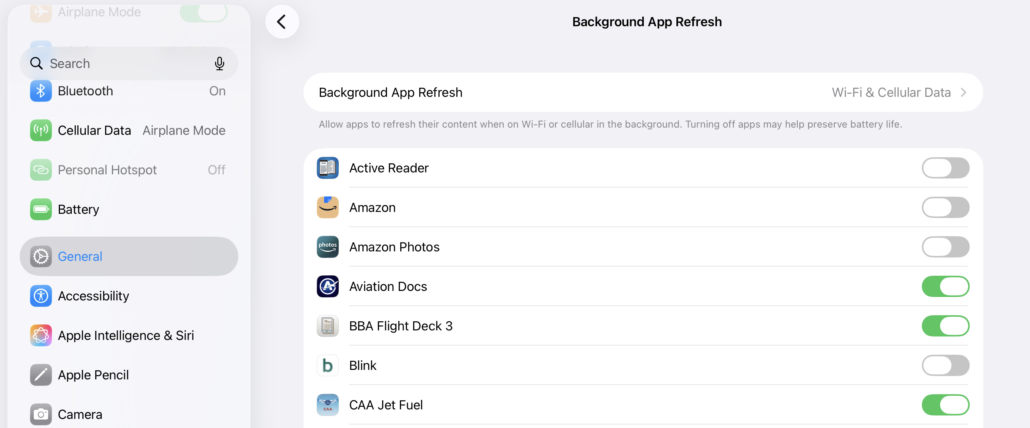
Location: Settings > General > Background App Refresh
This is one of those settings many pilots have never looked at.
Background App Refresh allows apps to update themselves when you’re not actively using them. That’s great for social media or news apps, but it also means dozens of applications may quietly consume battery power and system resources throughout the day.
Your EFB probably doesn’t need Instagram, Facebook, ESPN, or Amazon apps constantly refreshing while you’re flying.
Rather than disabling the feature entirely, consider leaving Background App Refresh enabled only for apps that truly benefit from it and turning it off for everything else. The result is often improved battery life and fewer unnecessary background tasks competing for your iPad’s attention.
3) Create a “Flying” Focus Mode
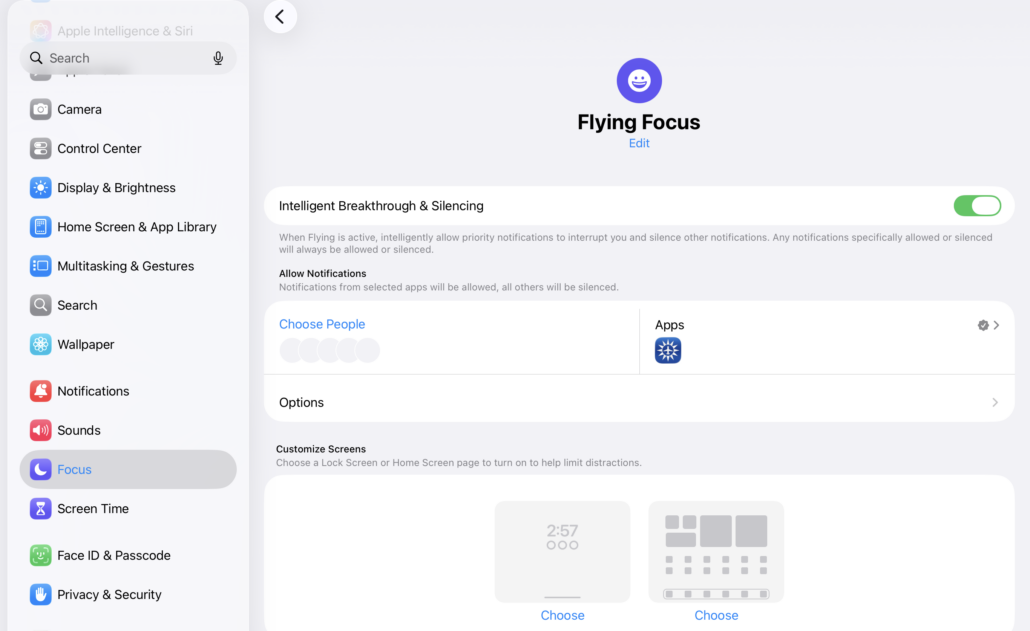
Location: Settings > Focus
The iPad is great at keeping you connected. Unfortunately, that’s not always what you want at 4,500 feet.
Text messages, work emails, Slack notifications, sports scores, and social media alerts can all appear at the worst possible moment.
Instead of silencing everything manually before every flight, create a dedicated Flying Focus mode. With a single tap, you can pause notifications while still allowing critical alerts from selected contacts if desired.
It’s a small change that makes a big difference.
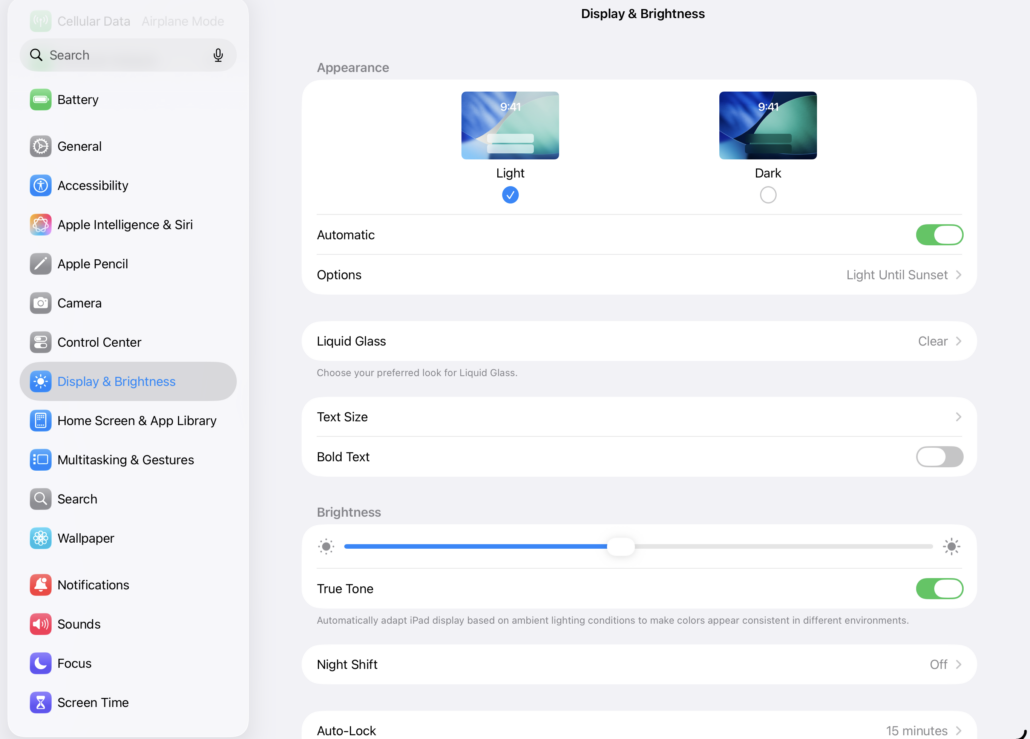
4) Take Control of Screen Brightness
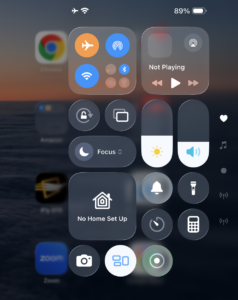 Location: Display > Brightness
Bright summer days often require maximum brightness, while a night flight calls for exactly the opposite. Instead of relying entirely on automatic brightness adjustments, get in the habit of checking your display before engine start.
It’s also worth remembering that running the screen at maximum brightness generates additional heat and drains the battery more quickly. If your cockpit is shaded or you’re flying after sunset, reducing brightness slightly can noticeably extend battery life.
After Every Major iPadOS Update
Apple occasionally resets permissions or changes system behavior after major software updates. Before your next flight, take 30 seconds to verify these key items:
- Confirm your EFB still has Location Services permission.
- Verify your charts and databases are current.
- Make sure Auto-Lock and your Flying Focus settings haven’t changed.
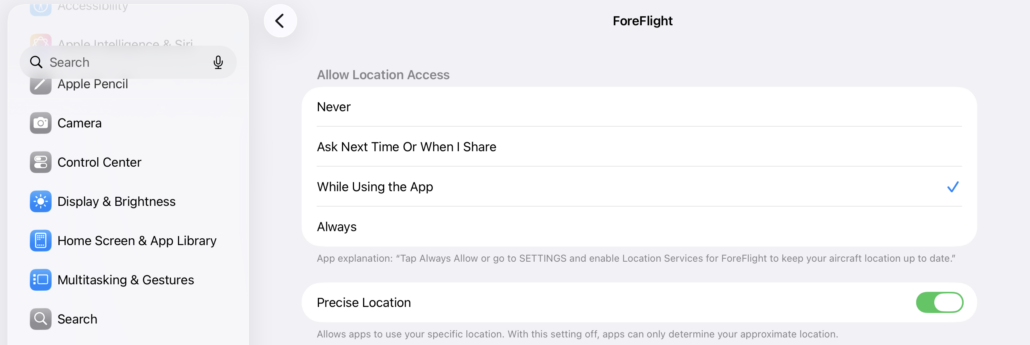
5) Verify Location Services
Location: Settings > Privacy & Security > Location Services
Your EFB depends on knowing where you are.
If Location Services are disabled—or your aviation app no longer has permission to access your location—you may lose your ownship position, airport proximity alerts, and other GPS-based features.
This isn’t something you’ll likely need to adjust often, but it’s worth checking after setting up a new iPad, restoring from a backup, or installing a major iPadOS update.
For ForeFlight, Garmin Pilot, and other apps, make sure location access is enabled so they can use the iPad’s built-in GPS (on cellular-equipped models) or an external GPS receiver.
6) Know When to Use Low Power Mode
Location: Settings > Battery
Low Power Mode isn’t something most pilots need for every flight, but it’s a valuable backup if your battery is running lower than expected.
When enabled, it reduces background activity and limits certain system functions to stretch the remaining battery life. If you’re halfway through a cross-country and realize you forgot your charging cable, those extra minutes could make all the difference.
Think of it as an emergency fuel reserve—not your normal cruise setting.

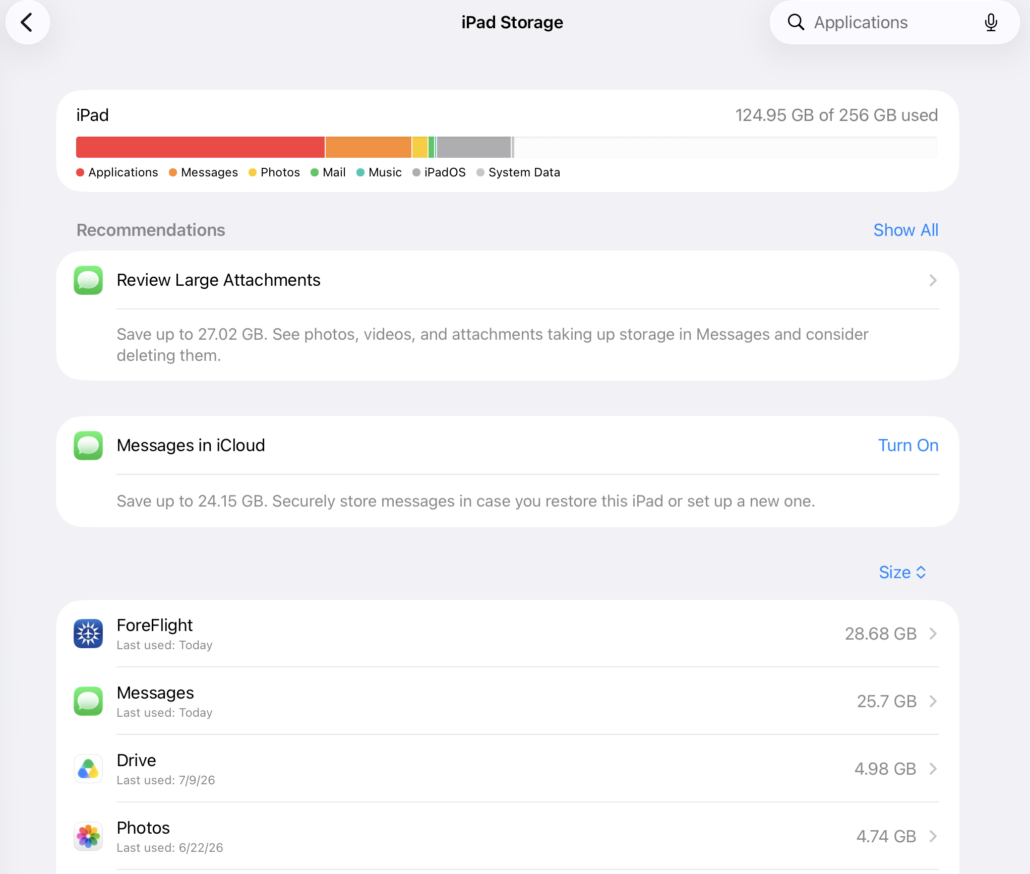
7) Make Sure You Have Enough Free Storage
Location: Settings > General > iPad Storage
Charts don’t download themselves into thin air. If your iPad storage is nearly full, chart updates, app updates, and even iPadOS updates may fail without much warning.
Keeping 10-20 GB of free storage provides breathing room for regular downloads and helps your iPad continue performing smoothly.
While you’re there, it’s also a good opportunity to remove apps you haven’t opened in years.
Don’t Forget to PreFlight Your iPad
While these settings only take a minute to check, they’re just one part of making sure your iPad is ready for flight. If you’re looking for a more comprehensive checklist—including battery management, chart downloads, accessories, and backup planning—be sure to read our guide on preflighting your iPad in less than five minutes.
Today’s EFB apps are remarkably dependable. Spending a minute reviewing a few key settings before engine start helps ensure the technology stays in the background where it belongs, letting you focus on what matters most.

- Sporty’s Pilot Training App Adds New Video Lessons and Test Prep for 2027 - October 22, 2026
- 5 Ways to Make Your iPad EFB Less of a Distraction - September 23, 2026
- The Sporty’s Pilot Training App Adds a New Garmin Autopilot Course - September 2, 2026


Thanks for the practical article. The points were helpful for readers comparing options and planning the next step. Ref o8e7gm.