
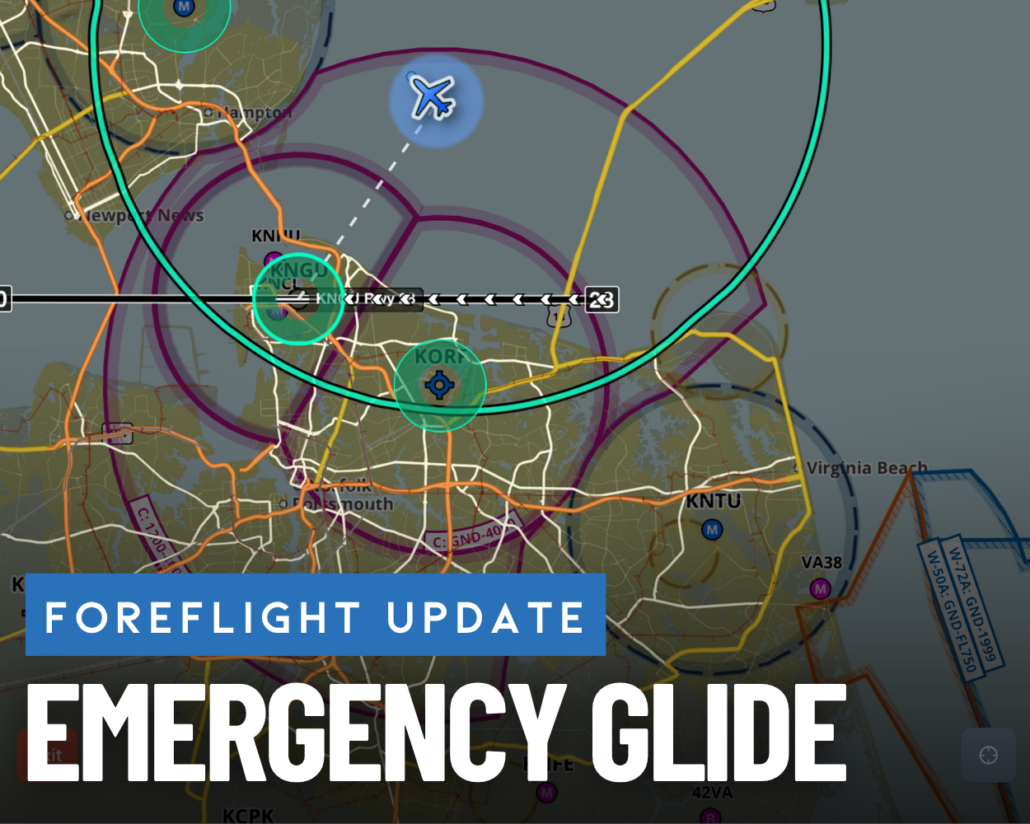
Engine out? How to use ForeFlight’s new Emergency Glide feature
ForeFlight’s latest update is now available on the App Store and includes Emergency Glide Mode, one of the biggest safety enhancements we’ve seen in the app yet. This new feature builds upon ForeFlight’s Glide Advisor to help pilots identify the safest place to land in the event of engine failure.
If you’re within gliding range of an airport, ForeFlight will instantly direct you towards the most favorable runway at the airport on the map. If there are no airports within range, the app will perform an instant off-airport landing site analysis and direct you to potentially suitable landing areas. Here’s how it works.
Emergency Glide – Nearest Airport
ForeFlight’s Glide Advisor feature has been available for nearly a decade and displays a cyan outline on the map representing the gliding distance of your airplane. This is calculated based on your current altitude and winds aloft. It is enabled in the Map Settings menu and requires you to manually enter your airplane’s glide ratio to provide an accurate calculation.
With this layer enabled, you’ll see a new dynamic Airports button in the lower-right corner of the screen indicating how many airports are currently within gliding distance of your position.
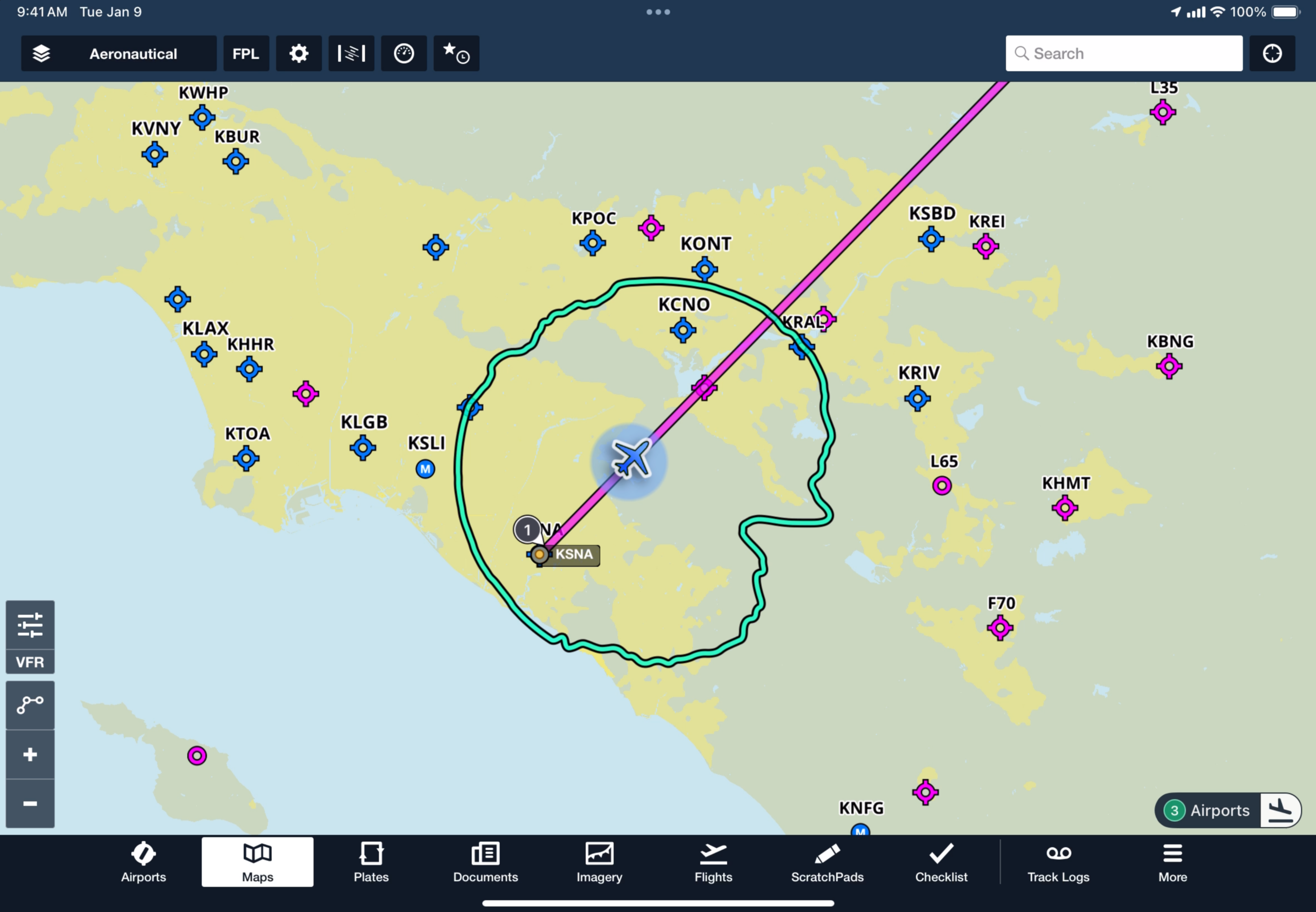
Tap this, and ForeFlight will switch the Map screen to Emergency Glide Mode and display the information that matters most for getting on the ground safely after an engine failure or loss of power.
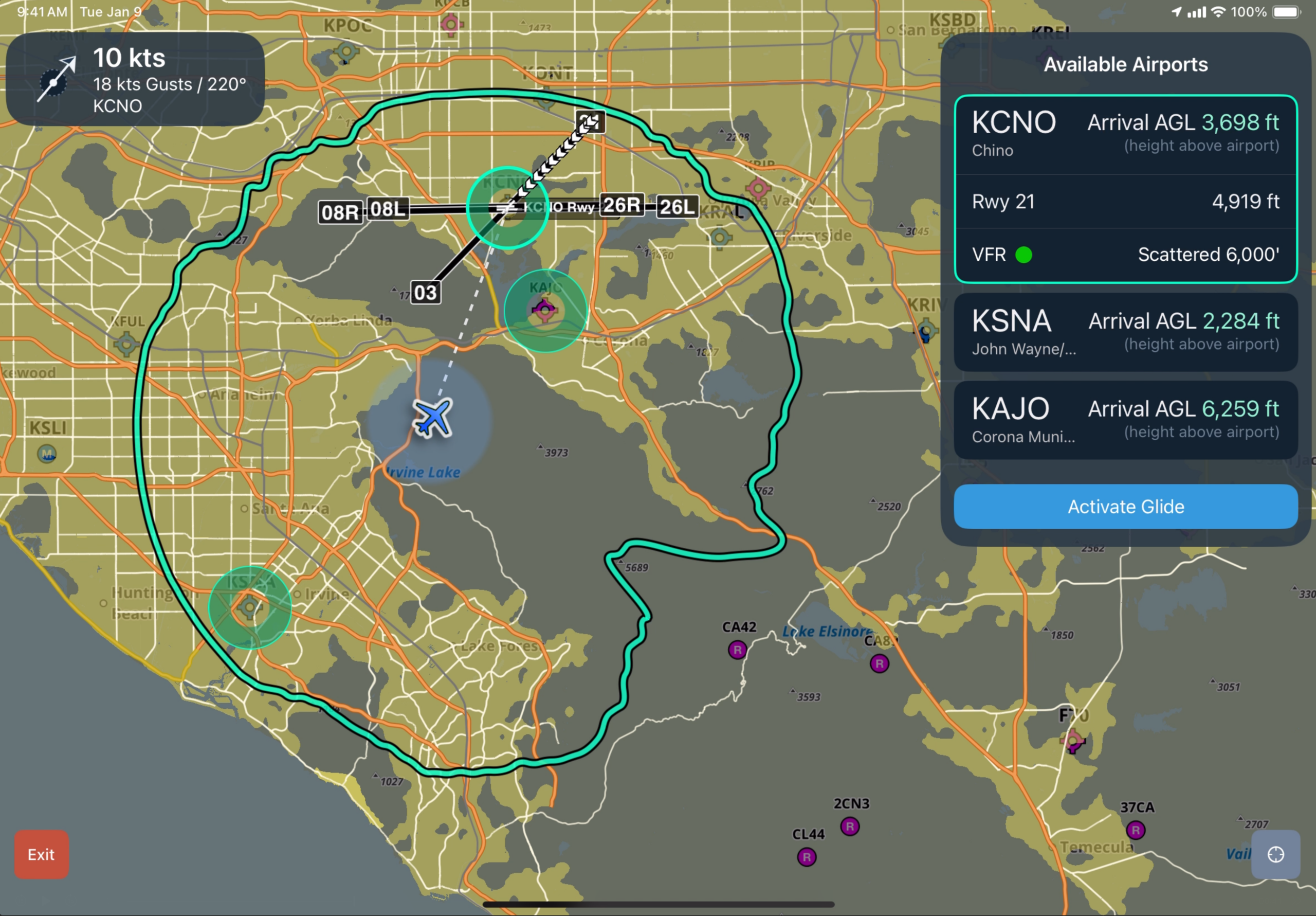
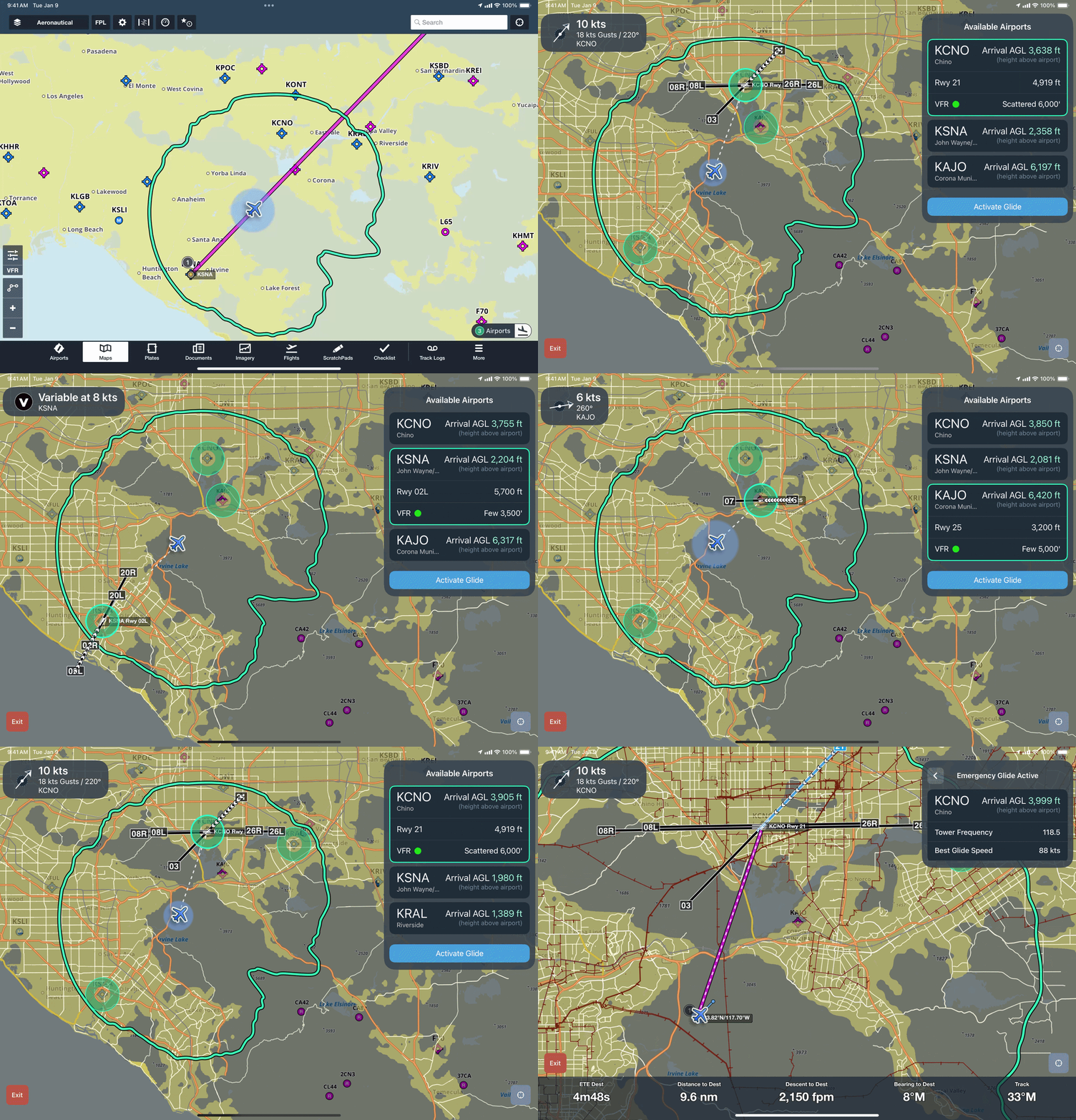
The upper left-hand corner will display wind information (if available), and the right-hand side will display suitable airfields within your glide range. Each airport will be displayed with an estimated Arrival AGL based on your current altitude, speed, and glide ratio. Tap on one of the airports, either from the list or on the map, to view the VFR or IFR status and the lowest reported cloud deck. ForeFlight will draw a path to that airport, display the runway layout, and highlight the most favorable runway with white chevrons based on the current surface winds. To confirm a selected airport, press the Activate Glide button.
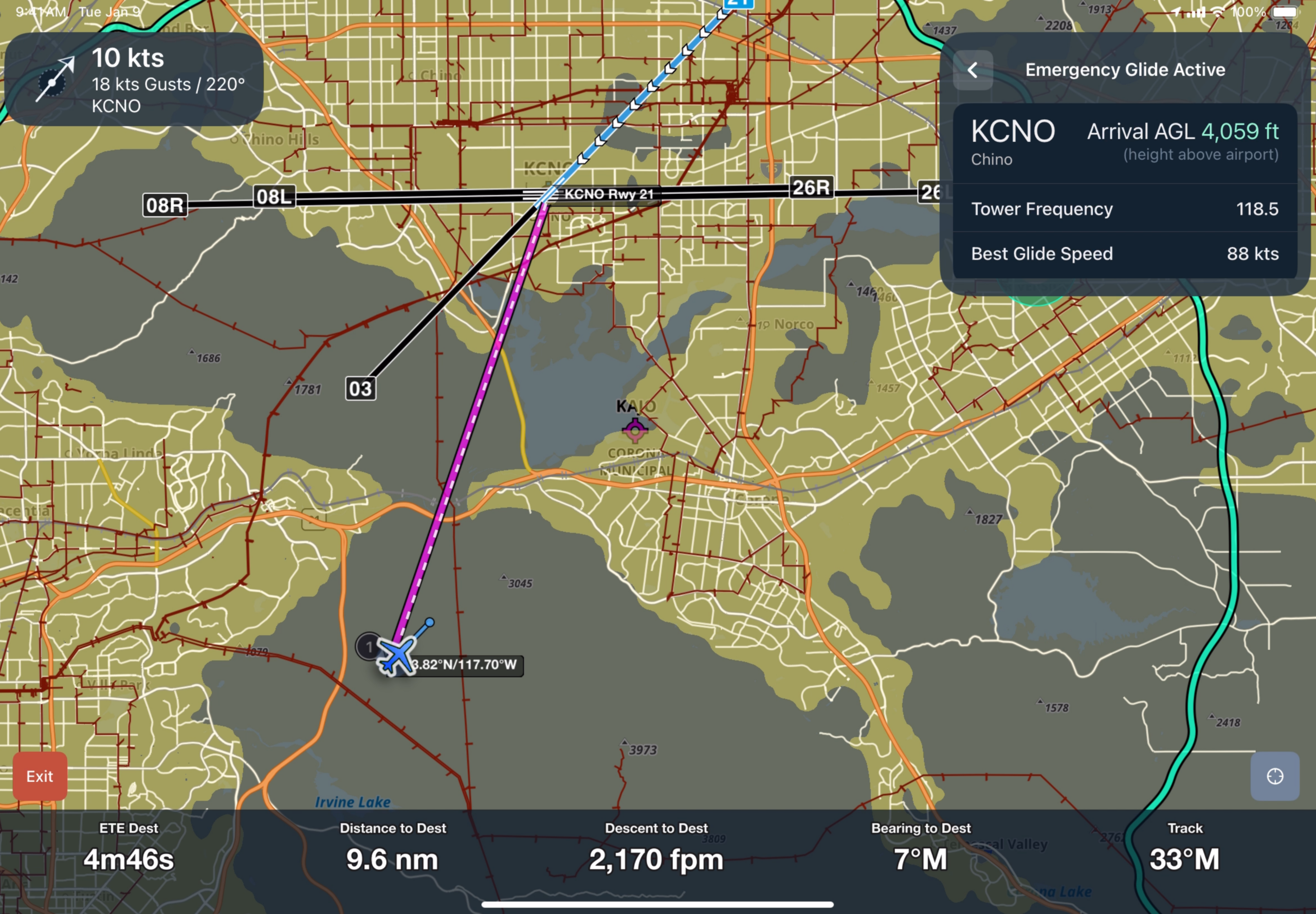
This will activate direct-to navigation to the airport, and further highlight the best runway with a blue highlight and white chevrons. The information box at the top right will change to show the CTAF or tower frequency and best glide speed, along with a continuously updated readout of the estimated AGL arrival height at the selected airport. A dynamic instrument panel will appear at the bottom of the screen, showing ETE, distance, required descent rate (in FPM) to reach the destination, bearing to the destination, and your current track.
In a situation with multiple airports within your Glide Range, ForeFlight will identify and call out the three most suitable. The three most suitable airports are determined by distance from your position, AGL at arrival, runway length, runway surface, and runway direction.
Here’s what it looks like in action:
Emergency Glide – Off-Airport Landing Site Analysis
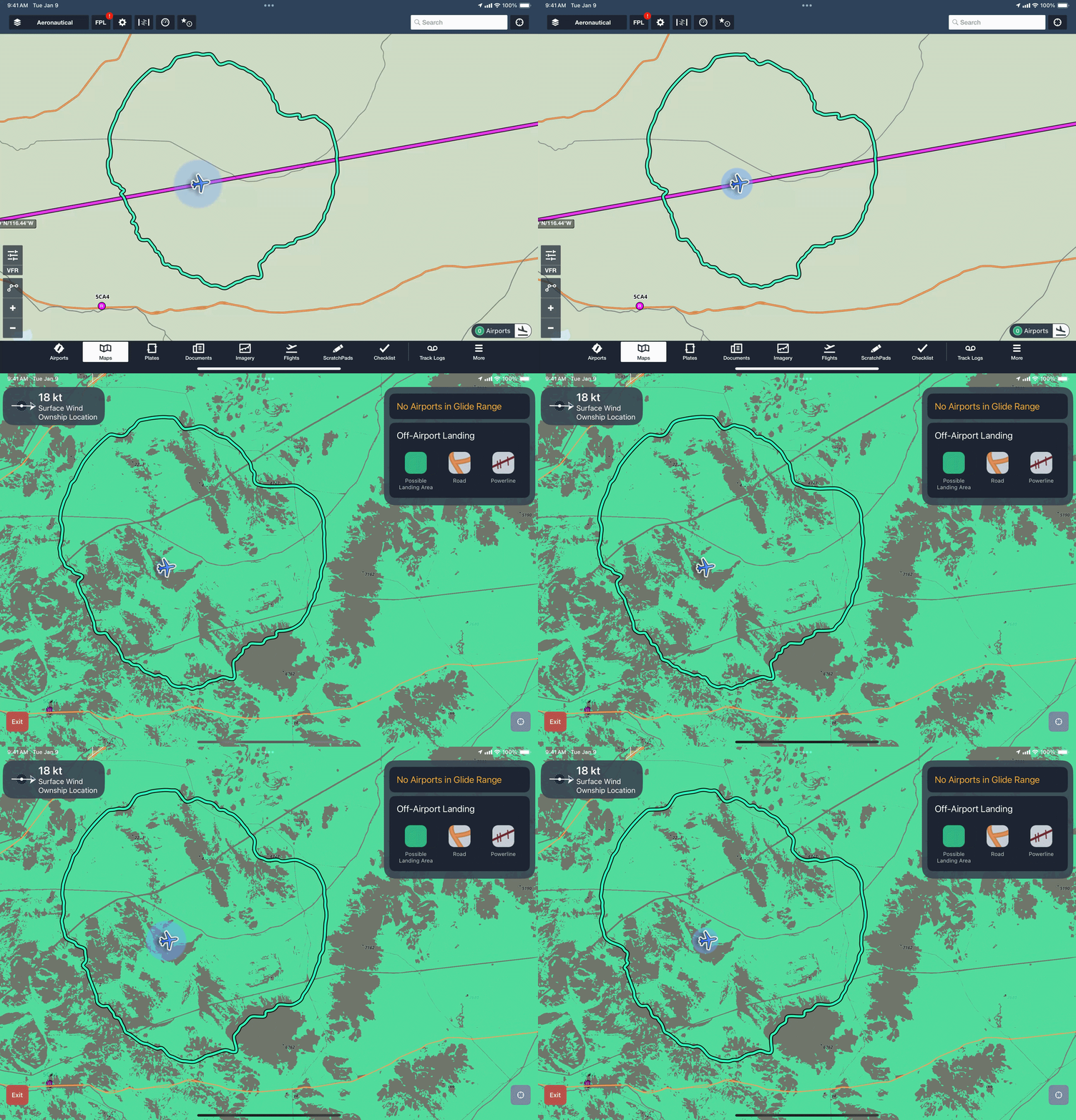
If there are no airports within your aircraft’s glide range, the emergency glide indicator will display “0 airports”. Tapping on this button will display potentially suitable landing areas using cyan shading, along with roads and powerlines. The colored areas represent potential off-airport landing areas for fixed-wing aircraft that meet a conservative set of surface, terrain, obstacle, and landing-geometry filters based on USGS survey data.
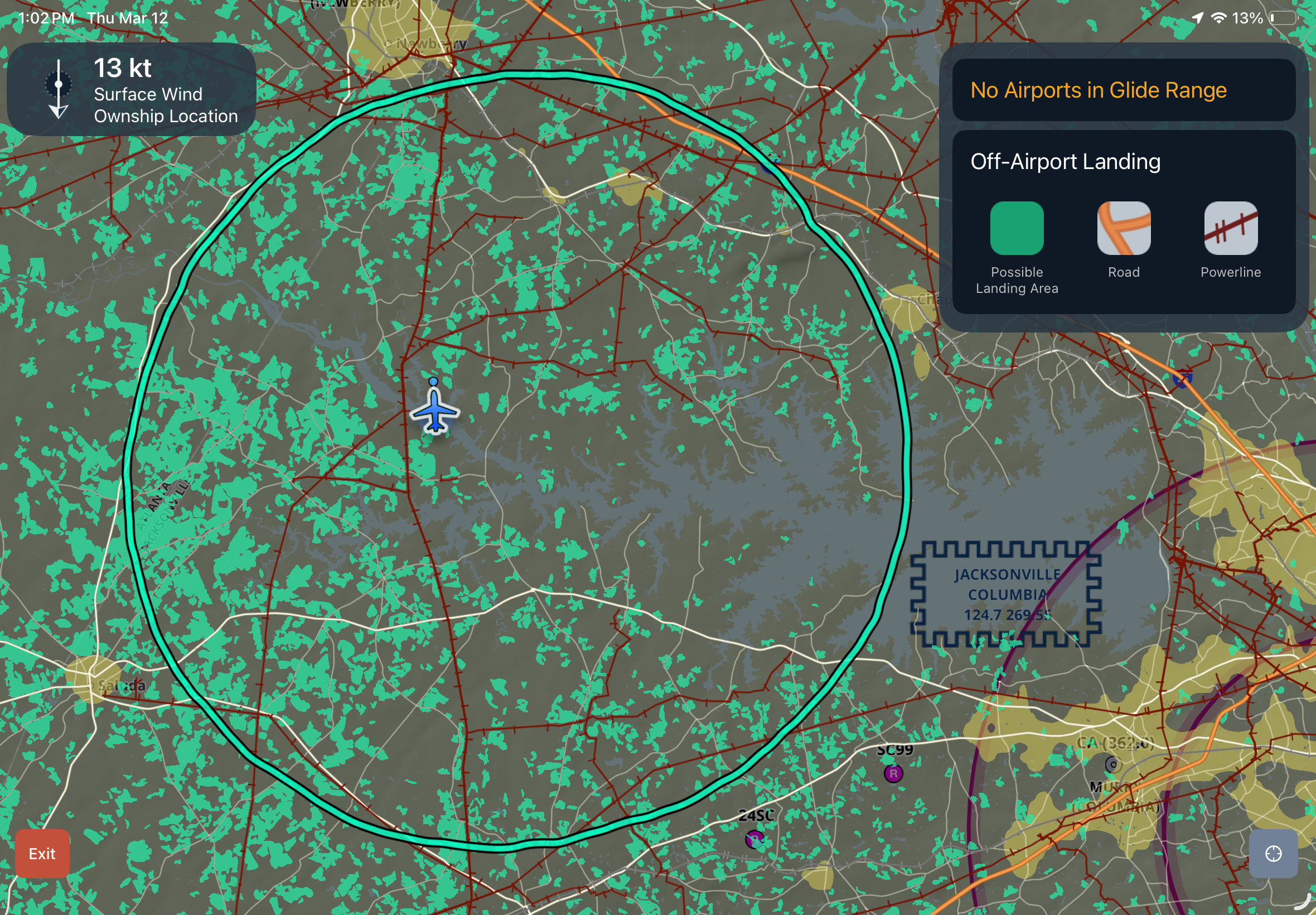
Potential off-airport landing areas are evaluated using five main criteria:
1. Surface type
The analysis starts with land-cover data. It marks ground cover such as open pastures, hayfields, and grasslands as suitable, and it marks forest, water, row crops, and most developed ground as unsuitable.
2. Trees and built-up surface
Next, areas with heavy tree cover, dense vegetation, or other signs of human development are excluded, as these make the ground less suitable for landing.
3. Terrain
Steep terrain and very high-elevation terrain are removed.
4. Nearby hazards and man-made features
Hazards such as water, buildings, railroads, power lines, and obstacles are removed, and a buffer zone is established around them to maintain a safety margin.
5. Usable landing-strip geometry
Lastly, the analysis factors in landing-strip geometry. It excludes large but curved, narrow, pinched, or awkwardly shaped polygons that do not contain a straight landing corridor.
This feature is intentionally conservative and does not guarantee that an individual site will be usable during an emergency. It should be used as a tool to provide an initial assessment of the most favorable direction to head during an unlikely engine-out situation.
What else is new
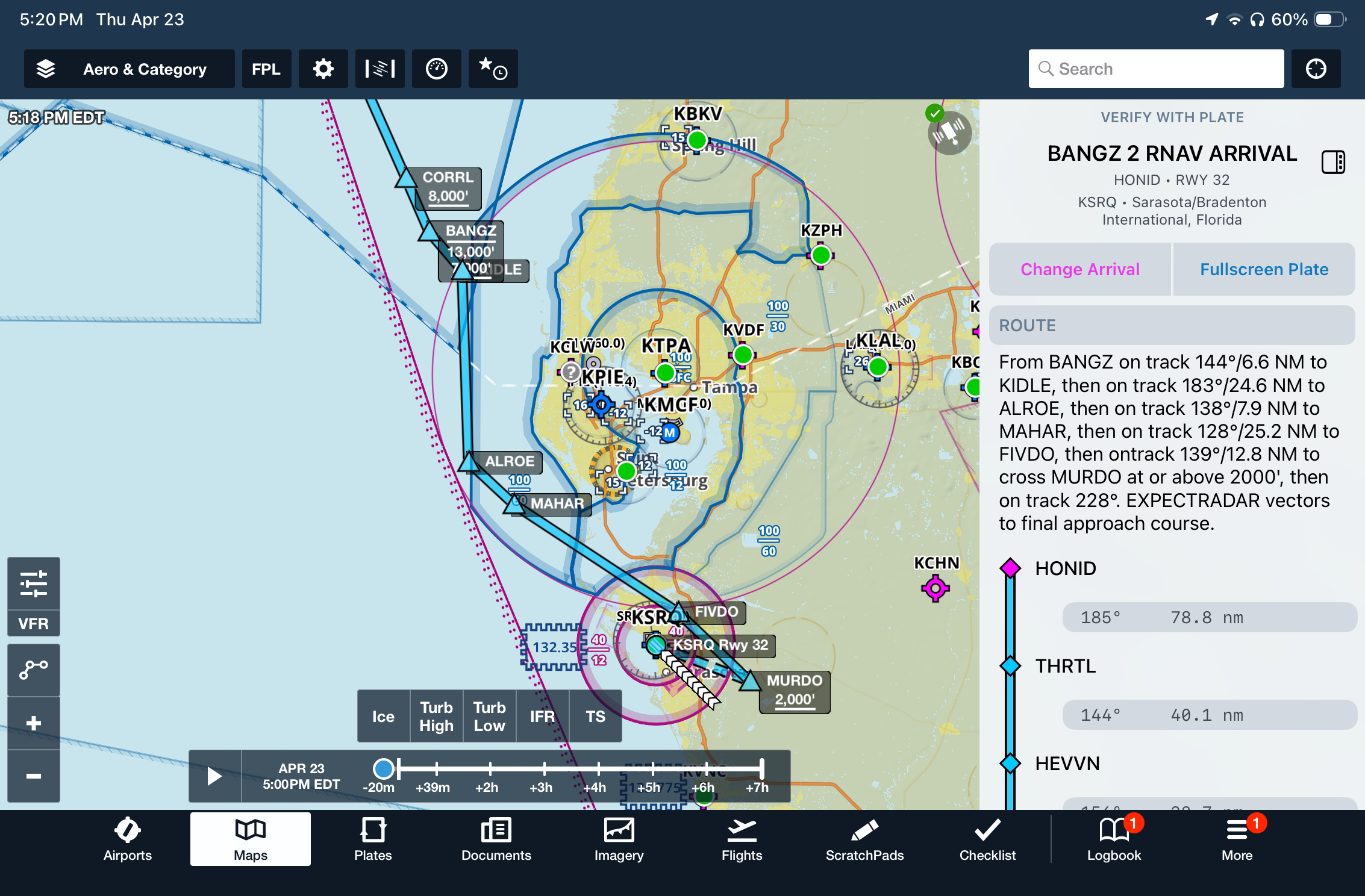
SID/STAR support in Dynamic Procedures – In addition to instrument approaches, you can now view departure (SID) and arrival (STAR) procedures in the Dynamic Procedures sidebar. After adding a SID or STAR to your route, press the Dynamic Procedure button at the top right of the map screen.
Enhanced US Icing & Turbulence Map Layers – ForeFlight’s Icing (US) and Turbulence (US) use the new, higher-resolution model data at 3km instead of the previous 13km scale. The Icing (US) layer includes improved modeling of liquid water content and large-droplet icing environments, and the Turbulence (US) layer better detects clear-air, mountain-wave, low-level, and storm, and cloud-driven turbulence.
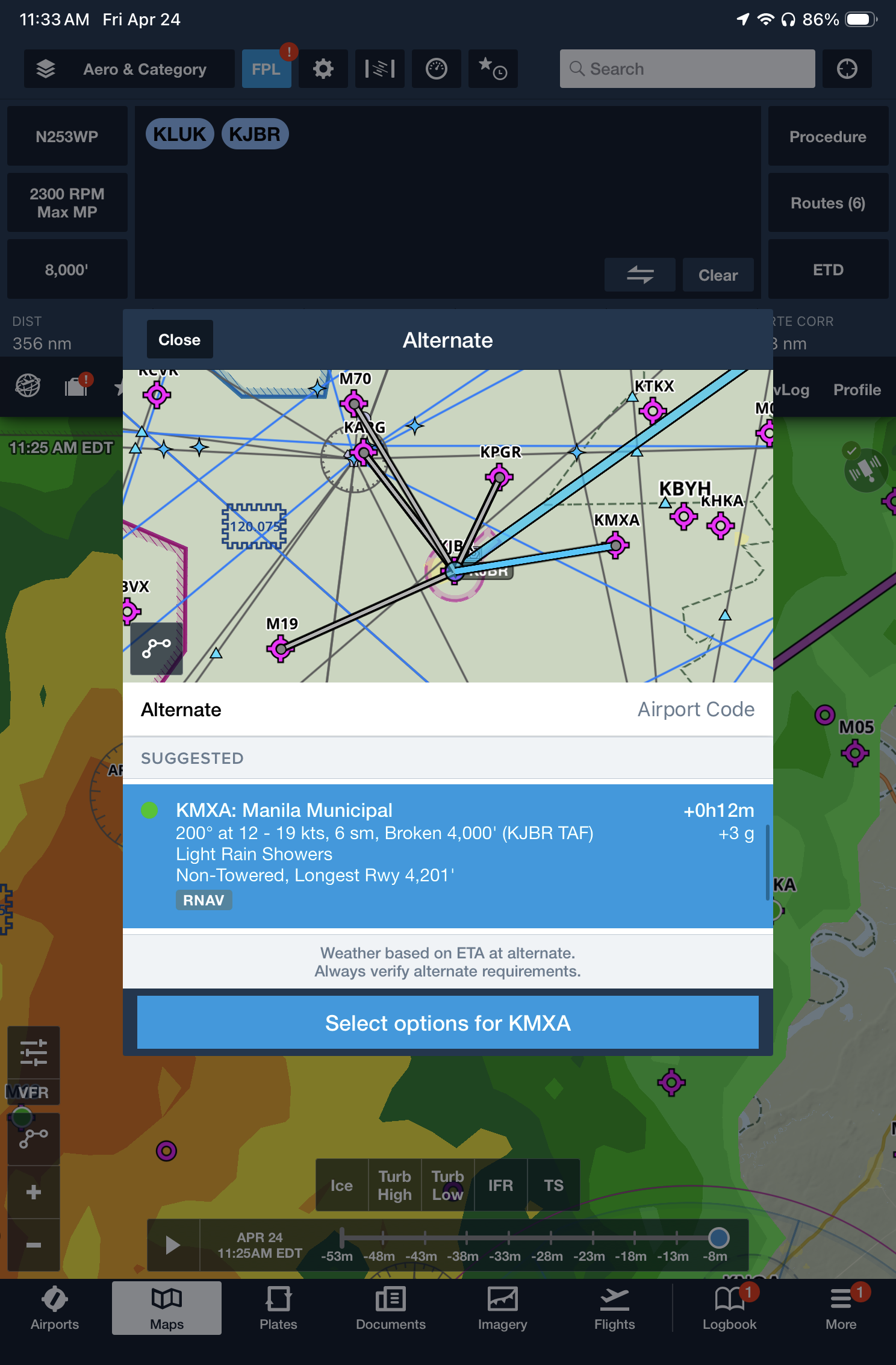
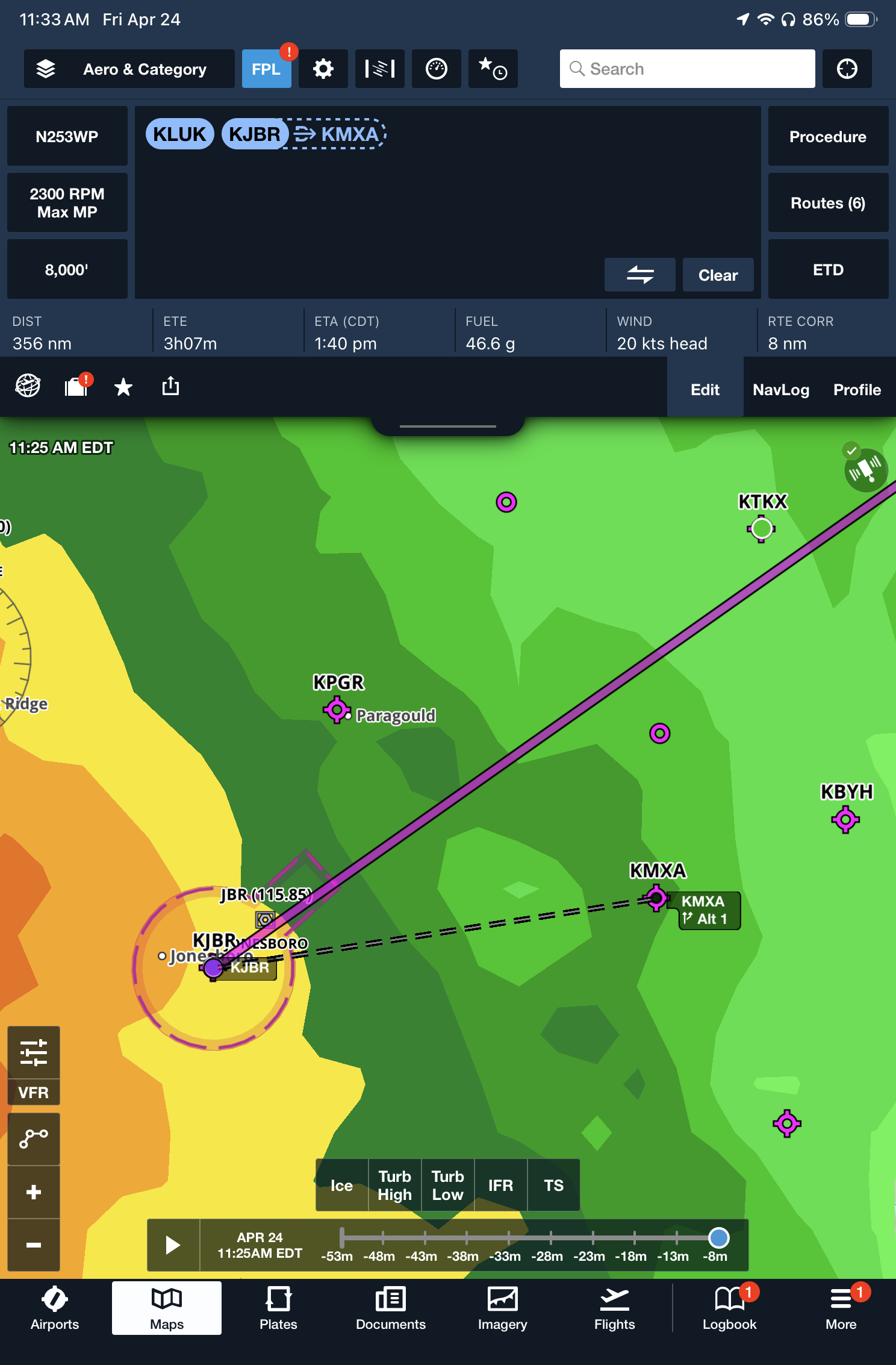
Alternate Airport on Maps – Tap on your destination airport identifier in the route editor at the top of the screen, and use the new Select Alternate button to load an alternate airport into your flight plan. Then, if you need to divert, you’re just one tap away from activating direct-to navigation to the alternate airport.
 .
. 

- iPad charging tips for pilots—it’s all about the watts - September 8, 2026
- Should pilots buy an iPad with a built-in GPS? - August 26, 2026
- iOS Update Green Light program: iOS and iPadOS 26.6.1 - August 15, 2026


Looks like a useful feature. But the Glide Circle itself is misleading since it doesn’t take into account the additional loss of altitude when making a turn to the side or behind the aircraft. The circle should not be a circle with the aircraft centered when flying over flat terrain, as in the first illustration. Perhaps more teardrop-shaped with the aircraft positioned somewhat behind the center and pointed towards the curved part of the teardrop, depending, of course, on the glide ratio of the aircraft.
My only concern about this enhancement to the ForeFligjt app would be depending on the emergency, do you have enough time to go thru menu’s and different screens? I’ve been through an engine power loss and during the couple of minutes I had before hitting the deck ( from about a thousand ft.) was declaring an emergency on the radio, reporting my location, assessing weather, visually scanning the area around me and flying the plane to ground. Now had I been up at 5k ft or higher, or around built up areas, this app could be helpful in pointing the way to safely landing. Time is the critical element- and while electronics are a wonderful aid, the pilot has to determine whether to navigate menu’s and bury his head in flight controls or visually flying his (or her) plane. Having another person onboard would definitely change the situation of course.
Thanks for the practical article. The points were helpful for readers comparing options and planning the next step. Ref 1jtqnke.