
 https://media.ipadpilotnews.com/wp-content/uploads/2026/06/03094115/ff-pro-tips-emergency-glide.png
1000
1250
iPad Pilot News Staff
https://media.ipadpilotnews.com/wp-content/uploads/2021/04/07120009/logo.png
iPad Pilot News Staff2026-06-03 09:41:232026-06-10 14:24:42Pro Tips from ForeFlight Power Users Training: Emergency Glide
https://media.ipadpilotnews.com/wp-content/uploads/2026/06/03094115/ff-pro-tips-emergency-glide.png
1000
1250
iPad Pilot News Staff
https://media.ipadpilotnews.com/wp-content/uploads/2021/04/07120009/logo.png
iPad Pilot News Staff2026-06-03 09:41:232026-06-10 14:24:42Pro Tips from ForeFlight Power Users Training: Emergency Glide https://media.ipadpilotnews.com/wp-content/uploads/2025/02/05135934/FF-video-tip-airport-information.png
1000
1250
iPad Pilot News Staff
https://media.ipadpilotnews.com/wp-content/uploads/2021/04/07120009/logo.png
iPad Pilot News Staff2026-04-10 08:55:592026-04-16 11:17:05ForeFlight Video Tip: Accessing Airport Information
https://media.ipadpilotnews.com/wp-content/uploads/2025/02/05135934/FF-video-tip-airport-information.png
1000
1250
iPad Pilot News Staff
https://media.ipadpilotnews.com/wp-content/uploads/2021/04/07120009/logo.png
iPad Pilot News Staff2026-04-10 08:55:592026-04-16 11:17:05ForeFlight Video Tip: Accessing Airport Information https://media.ipadpilotnews.com/wp-content/uploads/2026/03/03131936/video-tip-sharing-your-flight.png
1000
1250
iPad Pilot News Staff
https://media.ipadpilotnews.com/wp-content/uploads/2021/04/07120009/logo.png
iPad Pilot News Staff2026-03-10 08:55:582026-03-09 09:03:42ForeFlight Video Tip: Sharing Your Flight
https://media.ipadpilotnews.com/wp-content/uploads/2026/03/03131936/video-tip-sharing-your-flight.png
1000
1250
iPad Pilot News Staff
https://media.ipadpilotnews.com/wp-content/uploads/2021/04/07120009/logo.png
iPad Pilot News Staff2026-03-10 08:55:582026-03-09 09:03:42ForeFlight Video Tip: Sharing Your Flight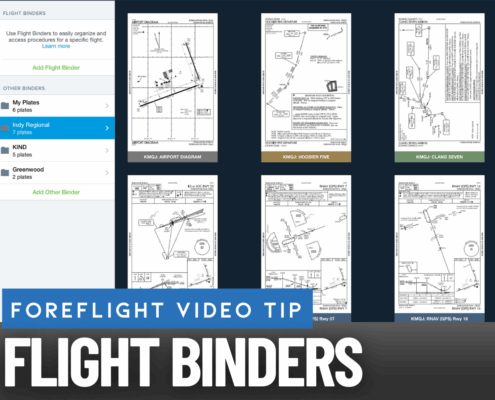 https://media.ipadpilotnews.com/wp-content/uploads/2026/01/20131816/video-tip-flight-binders.png
1000
1250
iPad Pilot News Staff
https://media.ipadpilotnews.com/wp-content/uploads/2021/04/07120009/logo.png
iPad Pilot News Staff2026-02-06 08:55:312026-02-05 10:26:05ForeFlight Video Tip: Creating Flight Binders
https://media.ipadpilotnews.com/wp-content/uploads/2026/01/20131816/video-tip-flight-binders.png
1000
1250
iPad Pilot News Staff
https://media.ipadpilotnews.com/wp-content/uploads/2021/04/07120009/logo.png
iPad Pilot News Staff2026-02-06 08:55:312026-02-05 10:26:05ForeFlight Video Tip: Creating Flight Binders https://media.ipadpilotnews.com/wp-content/uploads/2026/01/27092920/smart-aviator-podcast.png
1000
1250
Eric Radtke
https://media.ipadpilotnews.com/wp-content/uploads/2021/04/07120009/logo.png
Eric Radtke2026-01-30 08:55:162026-01-30 08:53:43Shopping for a Flight Planning App? Start With How You Fly
https://media.ipadpilotnews.com/wp-content/uploads/2026/01/27092920/smart-aviator-podcast.png
1000
1250
Eric Radtke
https://media.ipadpilotnews.com/wp-content/uploads/2021/04/07120009/logo.png
Eric Radtke2026-01-30 08:55:162026-01-30 08:53:43Shopping for a Flight Planning App? Start With How You Fly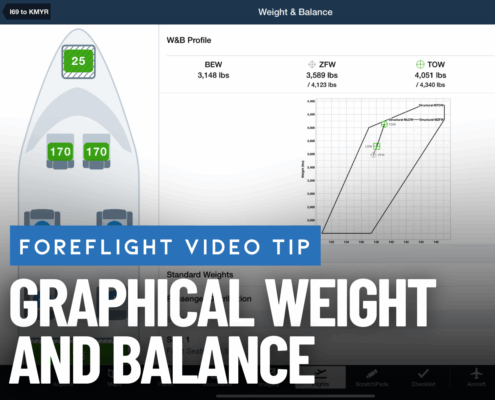 https://media.ipadpilotnews.com/wp-content/uploads/2025/12/29112842/FF-video-tip-weight-and-balance-1.png
1000
1250
iPad Pilot News Staff
https://media.ipadpilotnews.com/wp-content/uploads/2021/04/07120009/logo.png
iPad Pilot News Staff2025-12-29 11:28:522025-12-29 11:28:52ForeFlight Video Tip: Creating a Weight and Balance
https://media.ipadpilotnews.com/wp-content/uploads/2025/12/29112842/FF-video-tip-weight-and-balance-1.png
1000
1250
iPad Pilot News Staff
https://media.ipadpilotnews.com/wp-content/uploads/2021/04/07120009/logo.png
iPad Pilot News Staff2025-12-29 11:28:522025-12-29 11:28:52ForeFlight Video Tip: Creating a Weight and Balance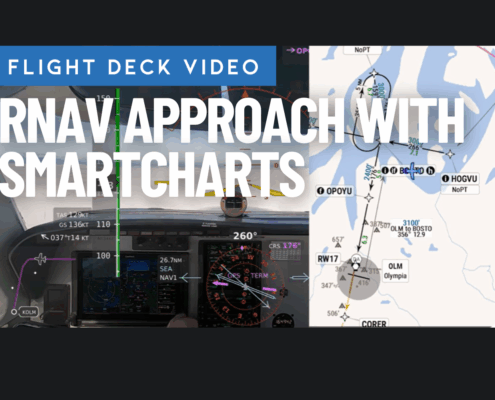 https://media.ipadpilotnews.com/wp-content/uploads/2025/12/16152155/RNAV-APPROACH-WITH-SMARTCHARTS.png
1000
1250
iPad Pilot News Staff
https://media.ipadpilotnews.com/wp-content/uploads/2021/04/07120009/logo.png
iPad Pilot News Staff2025-12-19 08:55:152025-12-16 15:22:28Video: RNAV Approach with Garmin SmartCharts
https://media.ipadpilotnews.com/wp-content/uploads/2025/12/16152155/RNAV-APPROACH-WITH-SMARTCHARTS.png
1000
1250
iPad Pilot News Staff
https://media.ipadpilotnews.com/wp-content/uploads/2021/04/07120009/logo.png
iPad Pilot News Staff2025-12-19 08:55:152025-12-16 15:22:28Video: RNAV Approach with Garmin SmartCharts https://media.ipadpilotnews.com/wp-content/uploads/2024/11/06102451/register-for-ipad-webinar-ipn.png
1000
1250
iPad Pilot News Staff
https://media.ipadpilotnews.com/wp-content/uploads/2021/04/07120009/logo.png
iPad Pilot News Staff2025-12-05 08:55:322025-12-04 20:34:35Webinar Video: Flying with Your iPad as a Digital Copilot
https://media.ipadpilotnews.com/wp-content/uploads/2024/11/06102451/register-for-ipad-webinar-ipn.png
1000
1250
iPad Pilot News Staff
https://media.ipadpilotnews.com/wp-content/uploads/2021/04/07120009/logo.png
iPad Pilot News Staff2025-12-05 08:55:322025-12-04 20:34:35Webinar Video: Flying with Your iPad as a Digital Copilot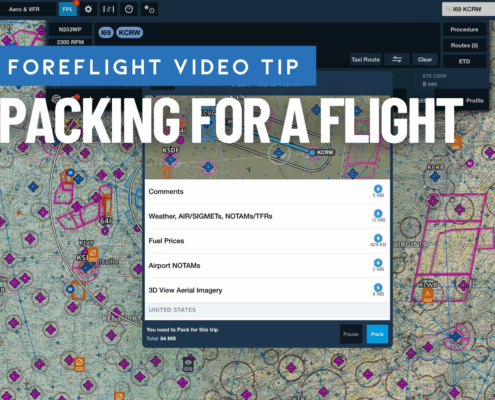 https://media.ipadpilotnews.com/wp-content/uploads/2025/10/21124322/FF-video-tip-PACK.png
1000
1250
iPad Pilot News Staff
https://media.ipadpilotnews.com/wp-content/uploads/2021/04/07120009/logo.png
iPad Pilot News Staff2025-10-24 09:05:012025-10-24 09:05:01ForeFlight Video Tip: Packing For a Flight
https://media.ipadpilotnews.com/wp-content/uploads/2025/10/21124322/FF-video-tip-PACK.png
1000
1250
iPad Pilot News Staff
https://media.ipadpilotnews.com/wp-content/uploads/2021/04/07120009/logo.png
iPad Pilot News Staff2025-10-24 09:05:012025-10-24 09:05:01ForeFlight Video Tip: Packing For a Flight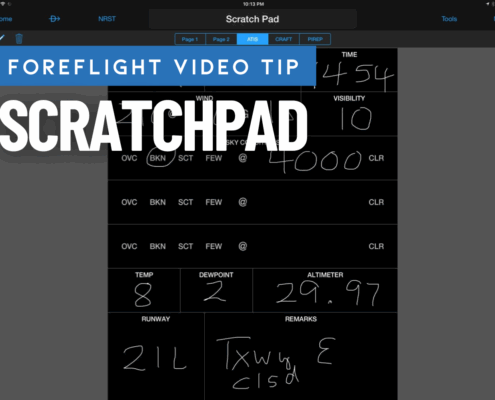 https://media.ipadpilotnews.com/wp-content/uploads/2025/09/16091752/FF-video-tip-SCRATCHPAD.png
1000
1250
iPad Pilot News Staff
https://media.ipadpilotnews.com/wp-content/uploads/2021/04/07120009/logo.png
iPad Pilot News Staff2025-09-19 07:19:292025-09-19 07:19:29ForeFlight Video Tip: Stay Organized with ForeFlight’s Scratchpad
https://media.ipadpilotnews.com/wp-content/uploads/2025/09/16091752/FF-video-tip-SCRATCHPAD.png
1000
1250
iPad Pilot News Staff
https://media.ipadpilotnews.com/wp-content/uploads/2021/04/07120009/logo.png
iPad Pilot News Staff2025-09-19 07:19:292025-09-19 07:19:29ForeFlight Video Tip: Stay Organized with ForeFlight’s Scratchpad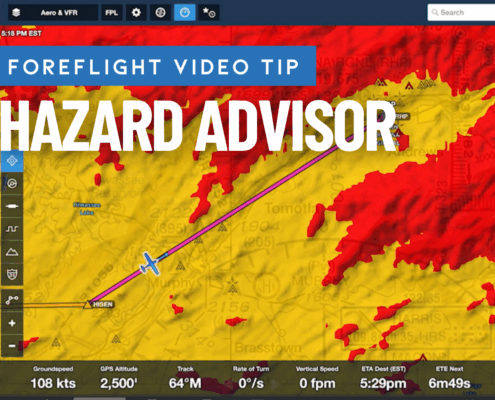 https://media.ipadpilotnews.com/wp-content/uploads/2025/08/18123924/FF-video-tip-hazard-advisor.png
1000
1250
iPad Pilot News Staff
https://media.ipadpilotnews.com/wp-content/uploads/2021/04/07120009/logo.png
iPad Pilot News Staff2025-08-22 09:00:192025-08-21 21:44:47ForeFlight Video Tip: Hazard Advisor
https://media.ipadpilotnews.com/wp-content/uploads/2025/08/18123924/FF-video-tip-hazard-advisor.png
1000
1250
iPad Pilot News Staff
https://media.ipadpilotnews.com/wp-content/uploads/2021/04/07120009/logo.png
iPad Pilot News Staff2025-08-22 09:00:192025-08-21 21:44:47ForeFlight Video Tip: Hazard Advisor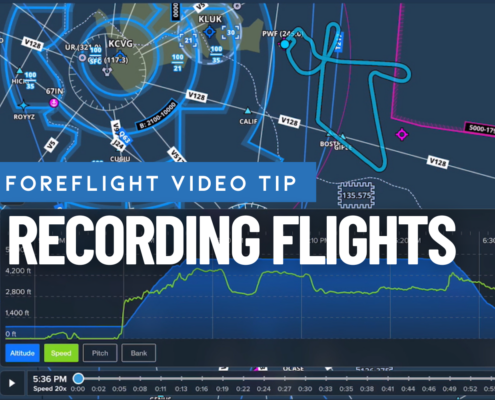 https://media.ipadpilotnews.com/wp-content/uploads/2025/07/07131152/video-tip-recording-flights.png
1000
1250
iPad Pilot News Staff
https://media.ipadpilotnews.com/wp-content/uploads/2021/04/07120009/logo.png
iPad Pilot News Staff2025-07-18 08:55:182025-07-17 12:45:42ForeFlight Video Tip: How to Record Flights
https://media.ipadpilotnews.com/wp-content/uploads/2025/07/07131152/video-tip-recording-flights.png
1000
1250
iPad Pilot News Staff
https://media.ipadpilotnews.com/wp-content/uploads/2021/04/07120009/logo.png
iPad Pilot News Staff2025-07-18 08:55:182025-07-17 12:45:42ForeFlight Video Tip: How to Record Flights