
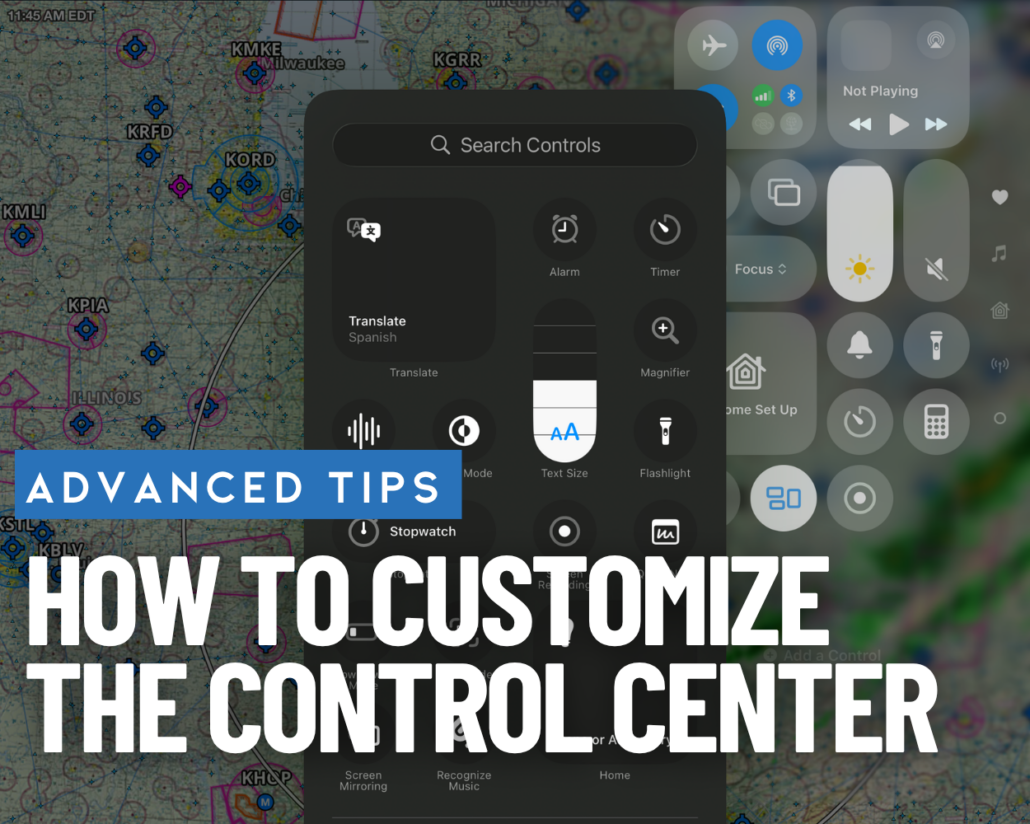
How to Customize the Control Center on Your iPad or iPhone
 The Control Center remains one of the most useful built-in tools on both iPhone and iPad. For pilots using an iPad as an electronic flight bag (EFB), it’s especially valuable—putting key system controls just a swipe away without leaving your aviation app. Whether you’re managing connectivity before engine start, adjusting brightness in cruise, or quickly enabling Focus mode during a busy flight, Control Center is designed for fast access when it matters most.
Over the last few iOS and iPadOS updates, Apple has significantly redesigned how Control Center works and—more importantly—how you customize it. Here’s what you need to know.
Accessing Control Center
On most modern iPhones and iPads, Control Center is accessed by swiping down from the top-right corner of the screen.
On Face ID devices, this gesture is consistent across both platforms. On some iPad configurations, especially with external keyboards, you may also access Control Center via the menu bar or system controls.
A More Flexible Control Center (What Changed)
Apple has significantly modernized Control Center in recent versions of iOS and iPadOS. The biggest change is that it is now fully customizable and modular.
Instead of a fixed layout with a separate “Include” list in Settings, Control Center is now:
- Fully editable directly on-screen
- Built around movable, resizable controls
- Organized into multiple pages or sections you can swipe between
- Designed for personalization based on how you actually use your device
For pilots, this is a meaningful improvement—you can now build a layout that matches your workflow (preflight, inflight, and postflight).
How to Customize Control Center
To edit Control Center:
- Open Control Center (swipe down from the top-right corner)
- Press and hold on an empty area or any control
- Tap Edit Controls (or enter edit mode directly, depending on iOS version)
- Add, remove, resize, or reposition controls as needed
- Swipe to create and organize multiple Control Center pages
You can now essentially design your own “instrument panel” of system tools.
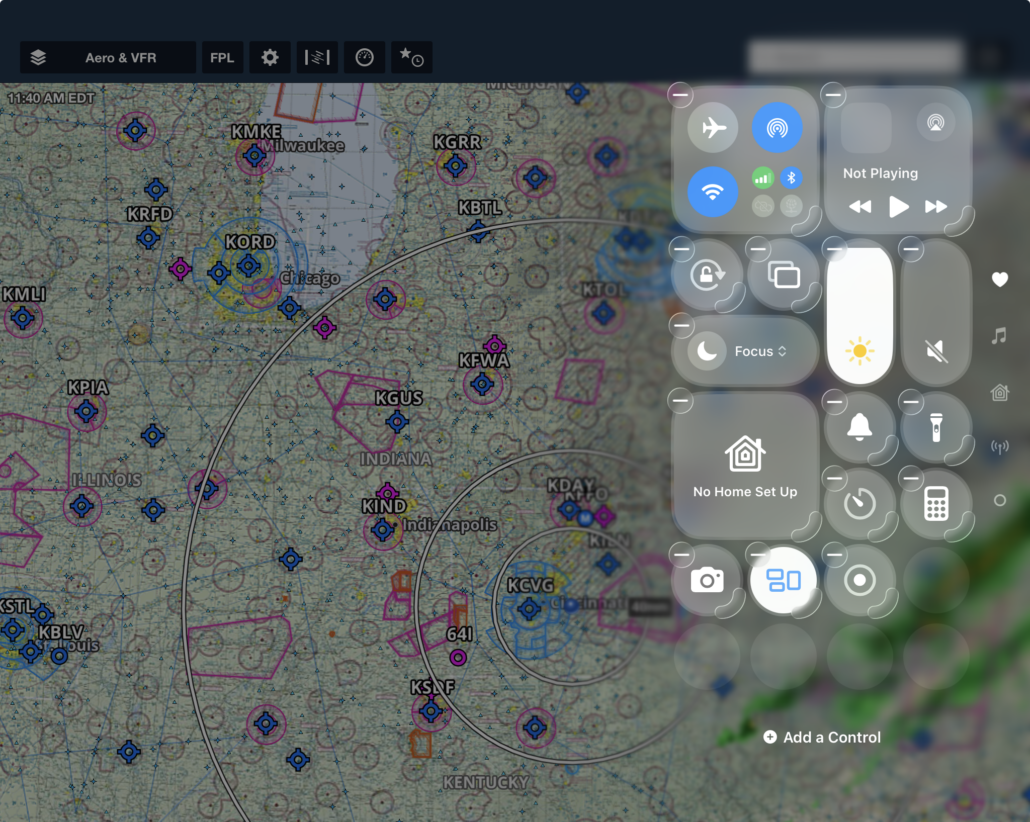
Standard Control Center Elements
While layouts are customizable, several core system controls remain central to the experience.
Connectivity (Airplane Mode, Wi-Fi, Bluetooth, Cellular)
The connectivity tile groups all major radios into one expandable control. For pilots, this is particularly useful for quickly isolating or restoring wireless connections during preflight.
Now Playing
Provides quick access to media playback and output selection (AirPods, Bluetooth devices, etc.).
Orientation Lock
Locks screen rotation—useful in turbulence or when using the iPad in varied mounting positions.
Screen Mirroring
Connects your device to AirPlay-compatible displays or Apple TV devices.
Brightness and Volume
Vertical sliders allow quick adjustment. These are among the most frequently used controls in aviation environments, especially during changing lighting conditions.
Focus
Replaces the traditional Do Not Disturb system. Focus allows you to silence or filter notifications based on activity—such as flying, driving, or sleeping.
For pilots, this is one of the most important Control Center tools for minimizing distractions in flight.
Custom Controls You Can Add
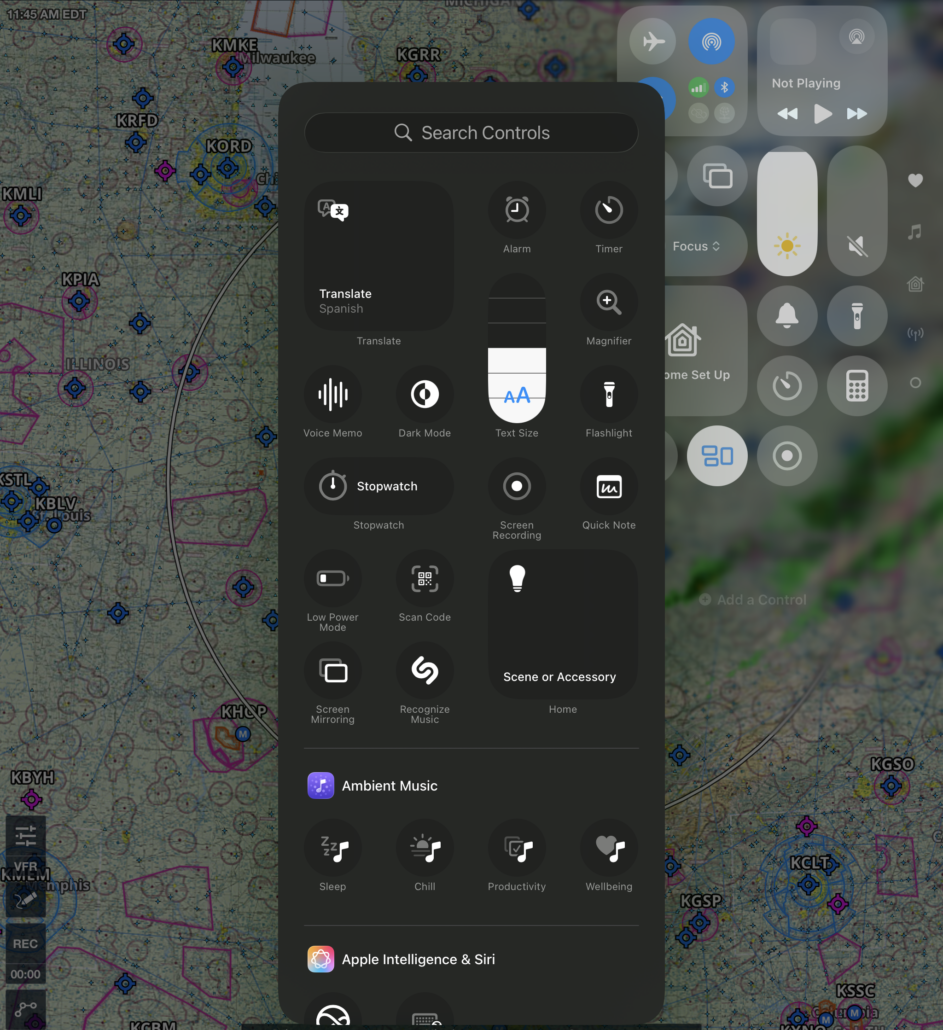 One of the strengths of modern Control Center is the wide range of optional tools you can add and organize.
Here are some of the most useful ones, especially for aviation and EFB use:
Screen Recording
Records on-screen activity and saves it to Photos. Extremely useful for:
- EFB training
- Demonstrating app workflows
- Capturing in-flight traffic or weather depiction changes
Calculator
Quick access to a basic calculator (iPhone only). Handy for quick fuel or time calculations.
Flashlight
Turns the camera LED into a flashlight. Press and hold to adjust brightness.
Timer and Stopwatch
Useful for holding patterns, instrument approaches, and fuel/time monitoring.
Quick Note
Creates an instant note from anywhere—ideal for jotting down clearances or ATIS information.
Camera
Quick access to photo and video capture.
Dark Mode
Instantly toggles system appearance for night operations.
Low Power Mode
Extends battery life during long flights or travel days.
Magnifier
Turns your device into a zoom tool for reading charts, documents, or cockpit details.
Voice Memos
Quickly capture audio notes, briefings, or observations.
Home Controls
Access smart home devices if configured.
Wallet
Quick access to payment methods, boarding passes, and travel documents.
Pilot-Focused Tips for Control Center Use
For aviation use, Control Center becomes even more powerful when configured intentionally.
Here are a few practical setup ideas:
Preflight page:
- Airplane Mode / Connectivity
- Brightness
- Wi-Fi controls
- Focus mode
- Low Power Mode
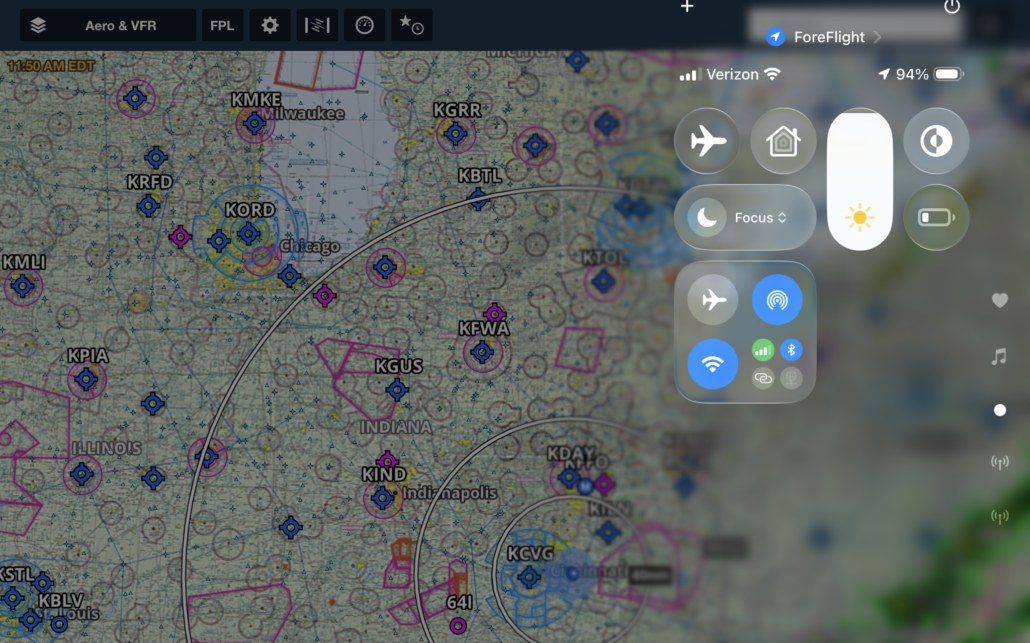
The Control Center becomes even more powerful when configured intentionally.
In-flight page:
- Screen Recording
- Timer / Stopwatch
- Brightness (quick adjustments)
- Focus mode
- Volume control
Postflight page:
- Notes / Quick Note
- Voice Memos
- Photos / Camera
- Wallet (travel documents)
By organizing pages this way, you reduce workload and keep frequently used tools exactly where you expect them.
Make it Your Own
Control Center has evolved from a simple shortcut panel into a fully customizable system control hub. For pilots using an iPad in the cockpit, it’s one of the most effective ways to streamline routine tasks and reduce distraction during flight operations. With a few minutes of setup, you can turn it into a personalized cockpit-style control panel that supports your flying—not distracts from it.

- iOS Update Green Light program: iOS and iPadOS 27.0.1 - September 28, 2026
- Is the new foldable iPhone Duo a good fit for pilots? - September 14, 2026
- iPad charging tips for pilots—it’s all about the watts - September 8, 2026

