

5 quick ForeFlight tips
3 min read
Most of the major navigation apps we use are packed with more features than we could ever understand. But that doesn’t mean there aren’t some really useful tools available if we know how to use them. In reality, being a power user often means simply knowing the basics, then adding on a collection of smaller tips.
With that in mind, here are 5 helpful tools that are available in ForeFlight Mobile:
- Use the ruler to measure time en route, weather deviations and more. ForeFlight’s ruler tool is one of the most useful features of any app we’ve flown with. It’s simple, but powerful–just tap the map with two fingers at the same time, and a ruler appears. You can stretch or turn the ruler to measure anywhere on the screen. Let go and the ruler stays there until you tap somewhere else. Besides a line, the ruler displays the course, distance, time en route and fuel burn. This is a great way to plan deviations around weather, top of descent points, airspace avoidance, fuel stops and any number of other things. Use your imagination–you’ll be surprised how often you use this.

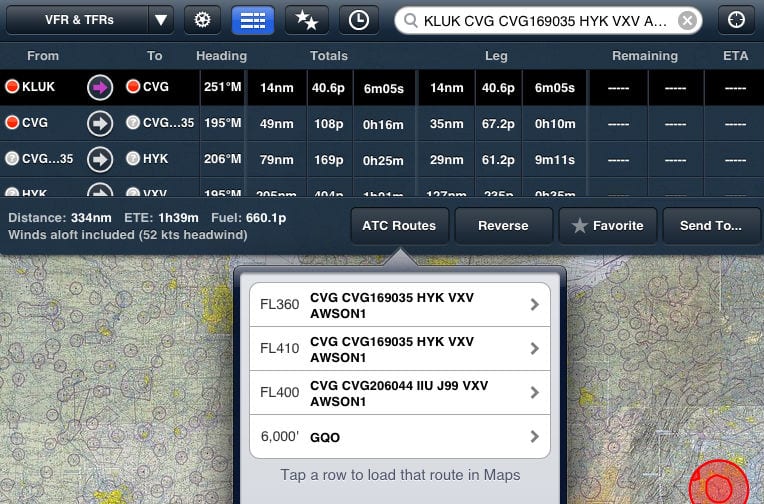
- Use the Route Advisor to file like a pro. Knowing what route to file is always a struggle for IFR pilots, but a new feature in ForeFlight helps. Once you’ve entered your route (on the Maps page) and the NavLog is showing, tap Edit. On the right side of the screen, you’ll see a button called Routes. Tapping this will display a list of routes that other airplanes have been cleared to fly for the same departure and destination airport. The list also shows the altitude, so you don’t file a Gulfstream route in your Bonanza. Just tap a route to load it into your active flight plan.

- Search for an airport or navaid and keep your route active. Let’s say you have a brutally complex route you’re flying (between Boston and Washington, for example), but you want to find a nearby airport. You don’t want to clear out your route just to look up the airport, and ForeFlight has a way to do this. With your route active in the Edit/NavLog window, just search for the airport (or navaid) in the search box at the top right. This will center the map on the airport and highlight it with four blue arrows, but your route will stay active. When you’re ready to go back to navigating, just tap the cross-hair symbol at the top right.

- Activate a leg when you’re told to “intercept the airway.” On many departure procedures, ATC will give you a vector, then tell you to intercept the airway on that heading and fly the departure. That’s easy to do on ForeFlight. From the NavLog, find the leg you want to intercept and tap the arrow symbol that is between the two waypoints. A menu will pop up with three options–fly direct to the 2nd waypoint, fly the leg or cancel. Choosing to “fly leg” means the airway will still be depicted (not a present position-direct, which would be wrong), and it will be the active leg.

- Adjust your departure time for accurate winds aloft. This is helpful for pre-flight planning. If your flight is departing in the next 24 hours, ForeFlight will automatically include forecast winds aloft to give you a more accurate time en route and fuel burn. By default (if you just enter your route with no time), the app will assume your flight is leaving immediately. But if you’re not departing for a few hours, it’s easy to change that and get the right winds aloft forecast. On the NavLog, tap Edit, then ETD on the right side. You can quickly choose the day and time of your departure, and ForeFlight will immediately update your time and fuel burn.


There are plenty of other quick tips we’ll share in future articles, including those for Garmin Pilot and WingX. For now, let’s hear from you. What’s your favorite shortcut or trick you use in ForeFlight?






I just flew my solo cross country and used the foreflight app with my ipad with no problems what so ever……..Praise the app and engineering put into it………
One thing Foreflight is missing is climb and decent profiles and speeds for different segments such as approaches. This makes the ETE’s/ETA’s quite inaccurate as Foreflight assumes you’re going to travel the specified speed from beginning to end. Unfortunately this means we have to utilize other flight planning tools to get accurate ETEs.
Is Foreflight legal for IFR operations? If not, what avionics must you have to use with Foreflight? Where is the best place to mount an I-pad in a C-172?
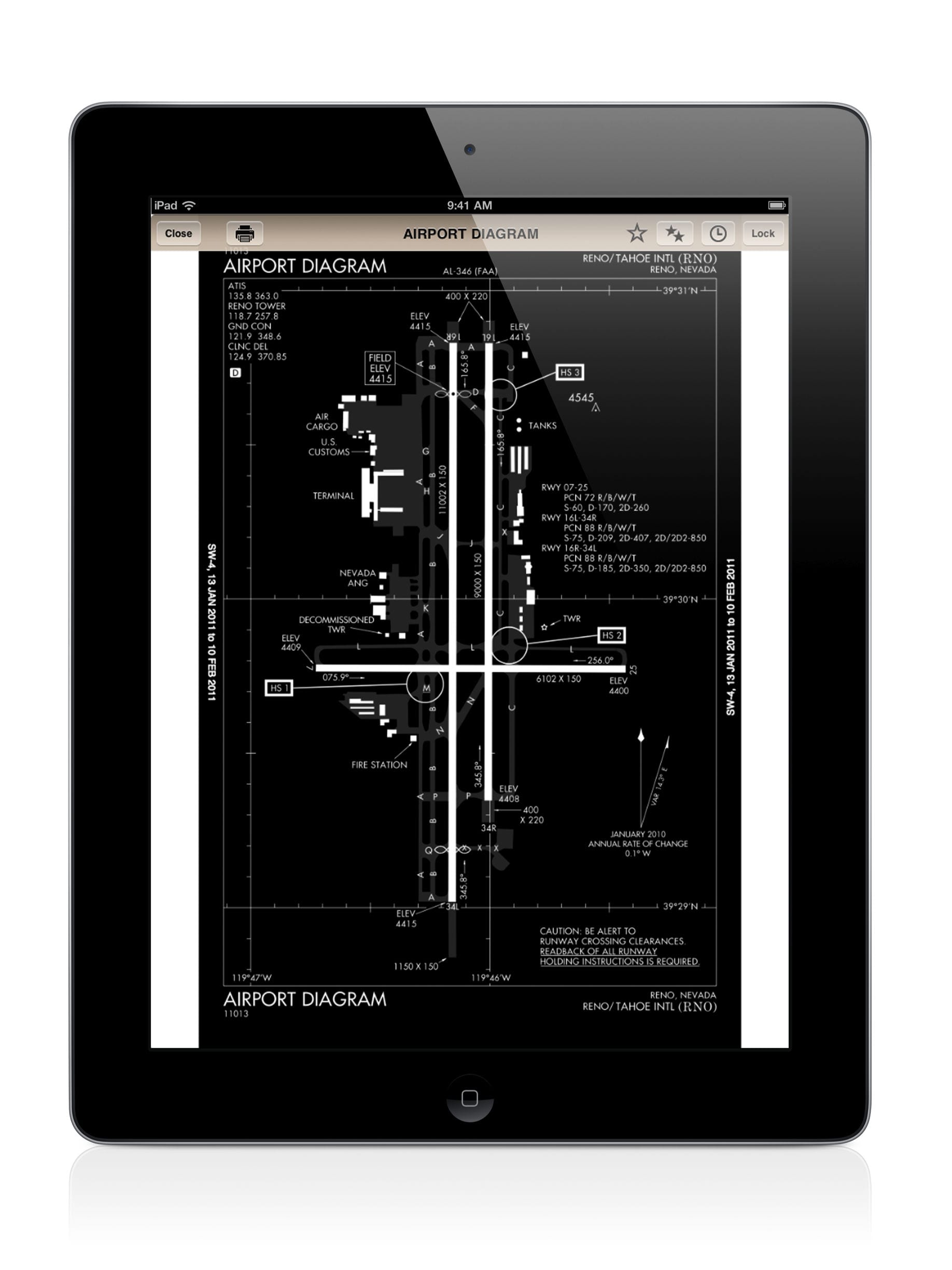
It’s fully legal for IFR charts, approach plates, and as an AFD but not for navigation. You can’t file GPS-direct or GPS approaches if you don’t have and use an IFR-approved GPS. That being said, it’s excellent as an increased situational awareness tool to have your position overlayed on the charts, approach plates, and taxi diagrams.
I have a 177RG as well as a Twin Comanche and prefer a yoke mount for both.
Thanks for your answer Phil. Am looking to buy an ipad 2 with 32gb. What is the cheapest IFR approved GPS out there? And would you still use the ipad to help you get to your destination?
The term cheap IFR approved GPS is an oxymoron. The only approved GPSs are panel mounts. A current model will easily break $10k installed (think Garmin/Avidyne 600 series). You can get old, out-of-production enroute and non-precision approach certified GPSs like a KLN92/94 installed for maybe $5k. We recently pre-purchased the Avidyne IFD540 for the Twin Comanche and yes, I plan on using the iPad even with that unit. I have the Sporty’s Stratus and using it for ADSB in-flight weather is far cheaper than the necessary ADBS options for the Avidyne, and likewise the chart subscriptions.
I’m looking to buy a 172 and am confused by all the different avionics installed. When they say they have a panel mounted GPS (like the Garmin 696) how can I tell if its approved for GPS approaches. If I do buy a plane with an older GPS can I use the ipad for most of the approach?
Basically, if it can be removed from the panel or was originally a portable that is now panel mounted like the 696, it’s not certified/legal for use as a primary IFR navigation instrument despite how many bells and whistles it has. You can only use the iPad as a chart replacement and for increased situational awareness, never (legally) as a primary navigation instrument in IFR (VFR is a different story). That being said; would anyone know if you never even turned on the old panel mount IFR GPS and flew with only reference to the iPad? Probably not, until something happened. The iPad coupled with the Stratus (internal WAAS GPS) is far more accurate than the old non-WAAS panel mount GPS’, so it’s hard to ignore. Those who will get busted are those who file GPS-direct or shoot GPS approaches with no certified GPS installed (as evidenced by the aircraft suffix).
Thanks for all the help Phil. I hope your answers help others as well. So, I should now be looking for a plane that has a permenently mounted certified GPS. I guess I can google whatever GPS is said to be in the plane and see if it is certified. Then use the ipad as a helper.
I love foreflight and use it all the time in a Pilatus and Malibu. However,
I find the ruler very hard to use because my thumb and finger cover up
each end of it and I can’t accurately set it. Am I doing something wrong?
@ Michael Knopp: Wherever your fingers touch the screen, a “T” is formed with the long part going back to the point where the other finger (or thumb) is touching the screen. If you slide your fingers down (or sideways) a little so the small part of the “T” intersects the desired point, then the measurement is accurate. You’ll also notice that there’s a dotted line at each end of the “T” which you can use in place of the solid line to accurately center the measurement line.
@Phil Cook
Thanks for the ruler tips, I already use it quite often but these tips makes it even more practical and enjoyable to use.
To Bruce – re: low cost IFR GPS – take a look at the venerable Garmin 300XL. Nice little box and won’t break the bank. Not WAAS capable.
Thanks for the info. Bennett has it for $3,995.
foreflight still best for user-friendliness. no competition yet.
For a GPS to be “legal”, it must have been installed and tested correctly. So even if an aircraft has in “IFR GPS” installed, it must also have an aircraft logbook entry that certifies it for use in IFR operations. So find that logbook entry before you buy.
For Bruce, if you’re still searching, I want to echo Mable’s comment – there are TONS of IFR GPS’s out there that are not legally installed or tested and are, technically, not legal for IFR navigation or approaches. Also, regarding the Garmin 300XL, it is a great unit and reasonably priced BUT, if I understand things correctly, the ADS-B mandate that will take effect in 2020 will basically require all IFR aircraft to have a WAAS GPS. If you plan to keep your plane for a while and fly in the system, you may want to just bite the bullet for a WAAS GPS now -especially if you are going to buy a used unit and have it installed since the installation will be a large portion of the cost. Garmin 430 WAAS are not horribly priced now with the introduction of the newer, touch screen Garmins. I believe Garmin can also upgrade a non WAAS 430 to WAAS for around $2K. If I am incorrect about the WAAS/ADS-B connection, someone PLEASE give me some good news…
Thanks Cory and Mable for your input. I bought a 172 and am still looking for an IFR certified GPS. I’ll check out the 430 WAAS.
Bruce, at my flight school in Warrensburg, we mainly fly 172R and we use the Garmin 430 WAAS. I can assure you that it is an incredible GPS and that you will love it! It makes flying approaches very nice. I’d suggest getting the dual screen if you can afford it. Hope this helps :]
I am definately considering the 430 waas. I haven’t seen the dual screen model.
@Phil Cook
Phil, you bring up a great point here; when teach people how to do cross country flight plans with ForeFlight, I have them do the following:
With your airplanes POH, calculate your time, fuel and distance to climb to your altitude, (lets say it is 20nm). On ForeFlight, your first point on your flight plan should be your TOC 20nm away from the airport. You can use the ruler function to find this.
Use your POH to calculate your fuel consumption, power setting and TAS for your cruise portion. Then you do the same procedure for a TOD portion. Use the POH to determine the time, fuel and distance (lets call it 30nm). Using the ruler on ForeFlight, find where 30nm is away from the airport/airspace, this is your TOD and should be the last point on your flight log.
This way you have accurately calculated time, fuel, and distance for both climb and descent; you have also let ForeFlight save you time by doing your cruise portion.
Any comments or constructive criticism on this method is welcomed.
Enjoy.